





Z-Wave Troubleshooting: Fixing Slow or Missing Responses
Even a well-designed Z-Wave network can have moments where a light feels sluggish or a sensor seems to stop reporting. The good news: most problems follow a few familiar patterns, and you can often fix them with small, practical changes instead of a complete overhaul.
In this article, we’ll walk through common issues, how to recognize them and how to use Homey to bring your Z-Wave network back to its usual calm, predictable behavior.
Recognising the Symptoms
Z-Wave problems usually show up in one of a few ways:
- A light sometimes turns on with a noticeable delay after motion.
- A sensor stops updating for hours or days, then suddenly works again.
- A group of devices in one area regularly shows “unreachable” or “offline”.
If you see the same symptom repeat in the same area or device type, you’re looking at a pattern. That pattern is your clue: it usually points to Z-Wave range, routing or power issues rather than something mysterious.
Check the Obvious First
Before diving deep into routing maps, it’s worth checking a few basics:
- Is the device physically powered? For mains devices, verify switches and breakers. For battery devices, consider how long it has been since the last replacement.
- Has anything large moved recently? A new wardrobe, fridge or metal shelf between Homey and a device can suddenly block radio paths.
- Did you recently change Wi-Fi, install a new router or move Homey Pro? A new layout might have changed how signals travel, even if Z-Wave is on a different frequency.
Sometimes the simplest explanation is the right one: a nearly empty battery or a relocated controller can cause issues across multiple devices.
Strengthening Weak Spots in the Mesh
If slow or missing responses are limited to a specific area – for example, garage, attic or back garden – it’s often a mesh strength problem. Devices there may have only one weak route back to Homey.
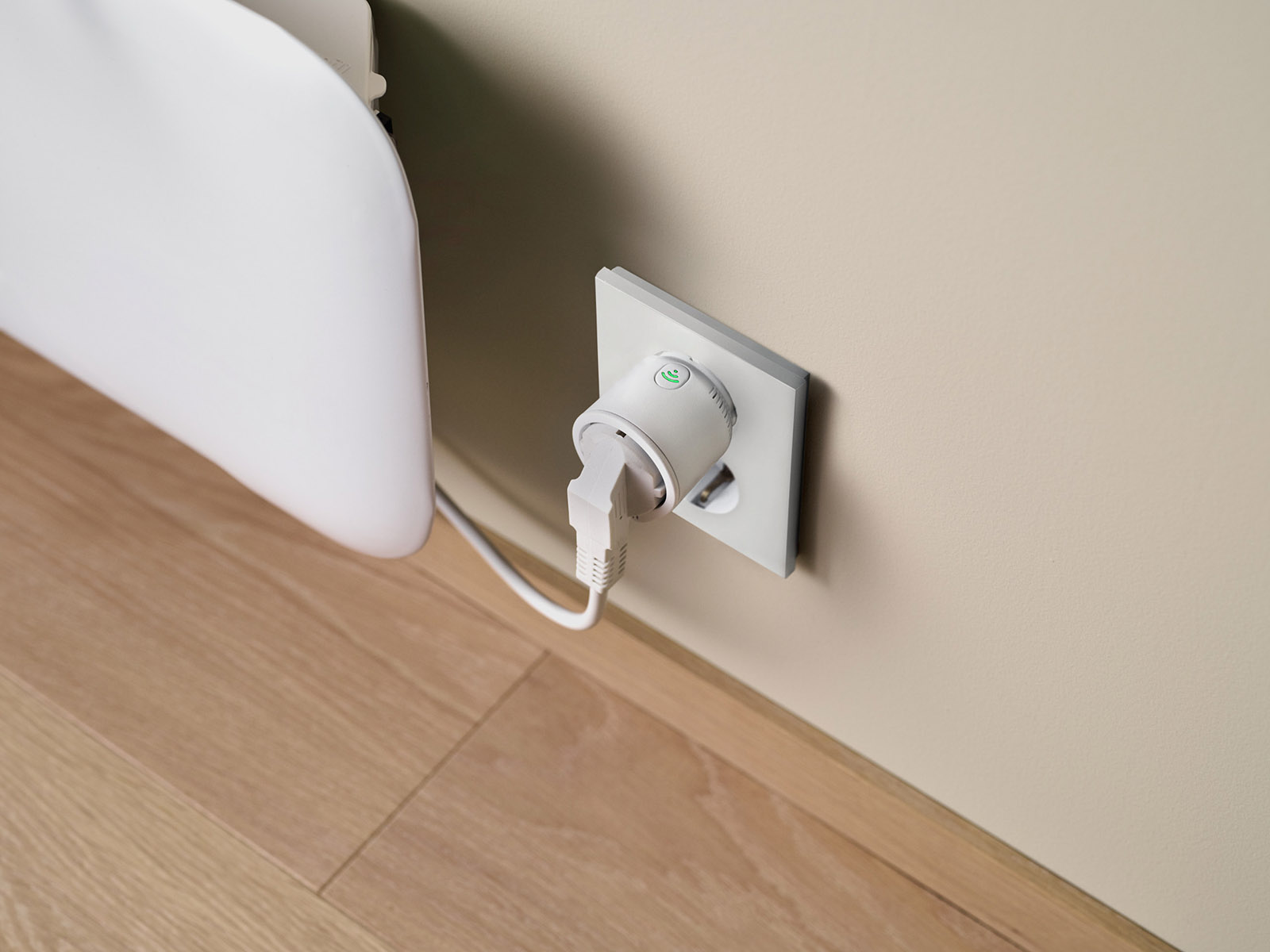
Adding a single mains-powered Z-Wave plug or in-wall module in a nearby corridor or halfway point can dramatically improve things. Think of it as placing a “stepping stone” between Homey and the affected area.
After adding the new device, give the network a little time to adapt, then test again. In many cases, you’ll see that motion events and switch commands suddenly feel immediate and reliable.
Re-Pairing Stubborn Devices
Sometimes a device just doesn’t behave, even when the mesh looks fine. It may have old routing information, a corrupted entry or leftover data from a previous network.
In those cases, a clean exclusion and re-inclusion can work wonders. Use Homey to exclude the device first (even if it is already in your network), then include it again as if it were new. This clears old network data and lets the device start fresh.
For secure devices like smart locks, follow the manufacturer’s instructions carefully during inclusion, and double-check that they join with the desired security level.
Using Homey’s Tools to Investigate
Homey gives you a few helpful indicators:
- Device status: whether a device is online, last seen, or frequently unreachable.
- Flow behaviour: whether Flows that depend on a specific device run consistently.
- Developer tools: for more advanced users, these can show routing information, signal paths and node health.
You don’t have to become a protocol expert, but glancing at these tools when you notice patterns can point you directly to the room, floor or device that needs attention.
Conclusion: Small Adjustments, Big Improvements
Z-Wave troubleshooting is less about magic resets and more about listening to the network’s behaviour. When devices are slow or missing, they are usually telling you something about range, routing, power or placement.
With Homey as your central view, small interventions – an extra routing device, a fresh battery, a moved plug or a clean re-inclusion – often restore the calm, predictable operation you want. In the broader Z-Wave guide, this troubleshooting spoke connects naturally to mesh design, security and device choice, giving you a complete picture from setup to fine-tuning.
Smart home technologies and platforms supported by Homey
Smart homes often use multiple wireless technologies and platforms. As a powerful smart home hub, Homey supports a wide range of communication standards, including Zigbee, Z-Wave, Matter, Thread, KNX, 433 MHz, Wi-Fi, Bluetooth and Infrared.
Homey also integrates with popular smart home platforms such as Amazon Alexa, Google Home and Apple Home. By combining multiple technologies and platforms in one system, Homey allows devices from different ecosystems to work together in one flexible smart home setup.
FAQ
Why do my Z-Wave lights only sometimes respond slowly?
Intermittent slowness often points to weak routes or marginal range, where messages sometimes need retries to get through.
A sensor stopped reporting. Is it broken?
Not necessarily. It might have an empty battery, a blocked route or outdated routing information. Start with batteries and mesh health before replacing it.
Do I need to “heal” my Z-Wave network manually?
Z-Wave updates routes over time automatically. Manual healing tools can help, but good mesh design and placement solve most issues.
What if only one device keeps dropping out?
Check its power, location and nearby routing devices. If that all looks good, try excluding and including it again.
Can a single new plug fix a whole floor?
Yes, if placed well. A plug in a central socket can give many devices a better path to Homey.
Why did things get worse after moving my router or Homey?
Changing positions can alter radio paths through your home. A new location might introduce obstacles that weren’t there before.
Does resetting Homey fix Z-Wave problems?
A full reset is rarely needed and can create more work. It’s better to adjust mesh design and individual devices first.
How can I test if a device has range issues?
Temporarily move it closer to Homey or closer to a strong routing device and see if responsiveness improves.
Is it bad to exclude and include devices often?
It won’t damage the device, but constant re-inclusion is a sign of deeper mesh or placement issues that are better fixed properly.
Can interference from other electronics cause Z-Wave problems?
Yes, large metal objects, some electrical panels and dense walls can all affect signal quality, especially if devices are right next to them.
Glossary
Weak Route
A weak route is a communication path that technically works but sits close to its limits. Devices on weak routes might respond sometimes and fail at other times. This often happens when environmental conditions change slightly.
Exclusion
Exclusion is the process of removing a Z-Wave device from the network. It clears out old network data so the device can be cleanly re-included. Using exclusion before re-inclusion often fixes devices that behave strangely.
Re-Inclusion
Re-inclusion means pairing a device again after a successful exclusion. It gives the hardware a fresh network entry and updated routes. This simple step can solve many reliability issues without requiring new equipment.
Stepping Stone Device
A stepping stone device is a strategically placed routing node like a smart plug or in-wall module. It bridges communication into a difficult area of the home. Adding one is often enough to stabilise sensors positioned further away.
Unreachable Status
Unreachable status in Homey indicates that the controller could not talk to a device for some time. It is a strong hint to check the power source and range. You should also look at the mesh strength around that specific node.
Developer Tools (Homey)
Homey’s developer tools offer deeper insight into device health and routing. They provide technical protocol details that the standard app hides. These tools are useful when basic checks do not reveal the cause of persistent problems.
Intermittent Fault
An intermittent fault is a problem that appears and disappears like occasional timeouts. These are often linked to marginal range or environmental changes. They rarely indicate a complete device failure.
Hard Reset (Device)
A hard reset restores a device to its original factory settings. It is a last-resort step after excluding and re-including have failed. Use this when a device remains stuck or deeply misconfigured.
Mesh Gap
A mesh gap is an area with insufficient routing devices to support reliable communication. Devices inside a mesh gap may behave unpredictably. Filling the gap with a new routing node typically restores stability.


