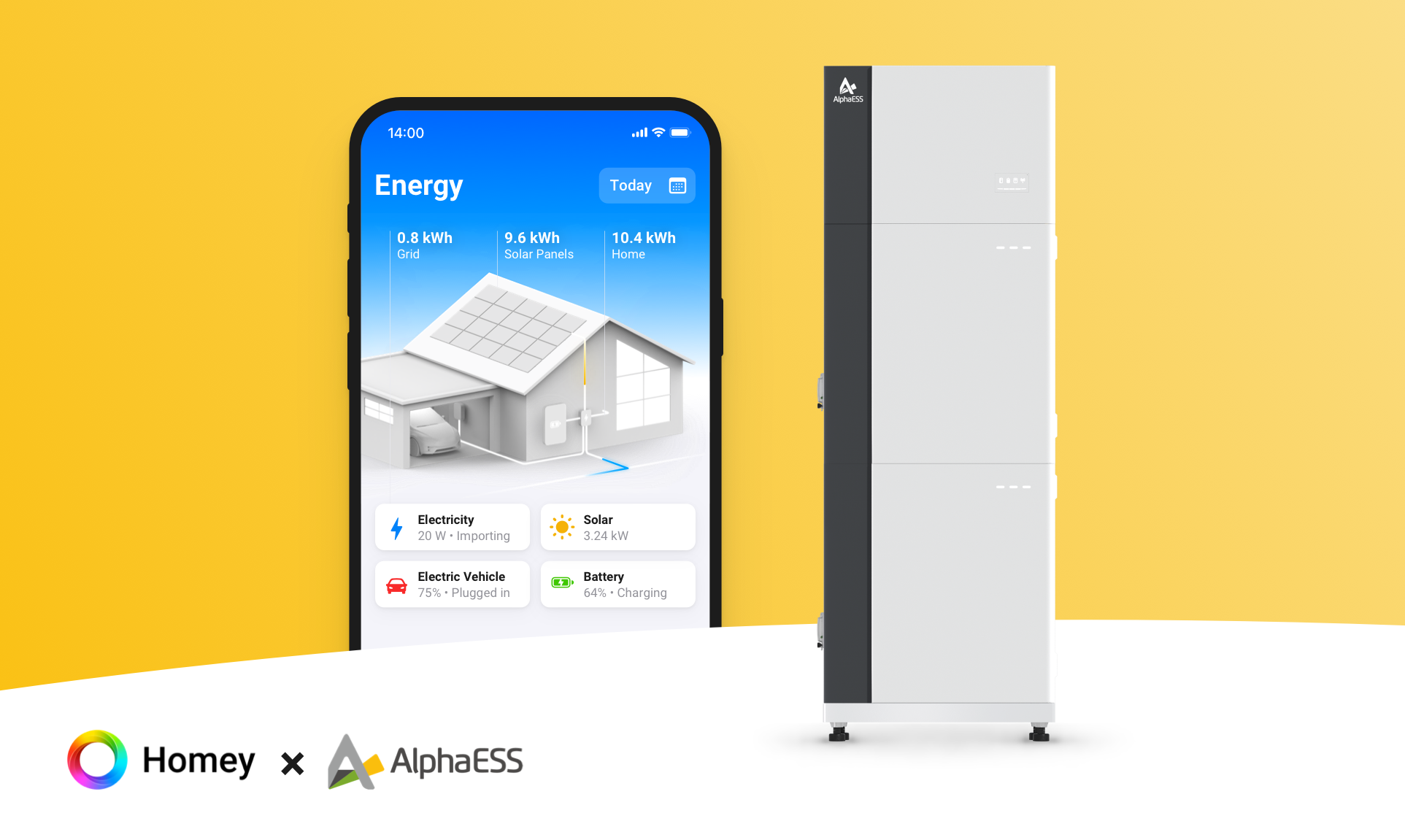


The Homevolt app for Homey helps you getting a better understanding of your Homey Energy utilization by connecting your Homevolt battery and power sensors to Homey.
Monitor your charge level, charge/discharge pattern and even grid frequency from the Homey app.
This app requires:
- A Homevolt battery connected to your local network
- The webserver enabled on your Homevolt battery, or an access token created in its web interface
GETTING STARTED
1. Ensure the local web server is enabled, or create an access token in the Homevolt's web interface (see SIGN-IN AND HTTPS below)
2. Install the Homevolt for Homey app
3. Add your Homevolt battery and sensors
4. Make sure you configure your sensors as per your requirement. If the Grid sensor is your only incoming measurement, feel free to use that. If not, disable the contribution to home energy in the advanced settings.
CONSIDERATIONS & LIMITATIONS
- This app is using the local webserver to poll data.
- This is an unsanctioned, non supported API and may break at any point in time.
- This app is not affiliated with Homevolt/Tibber/Polarium.
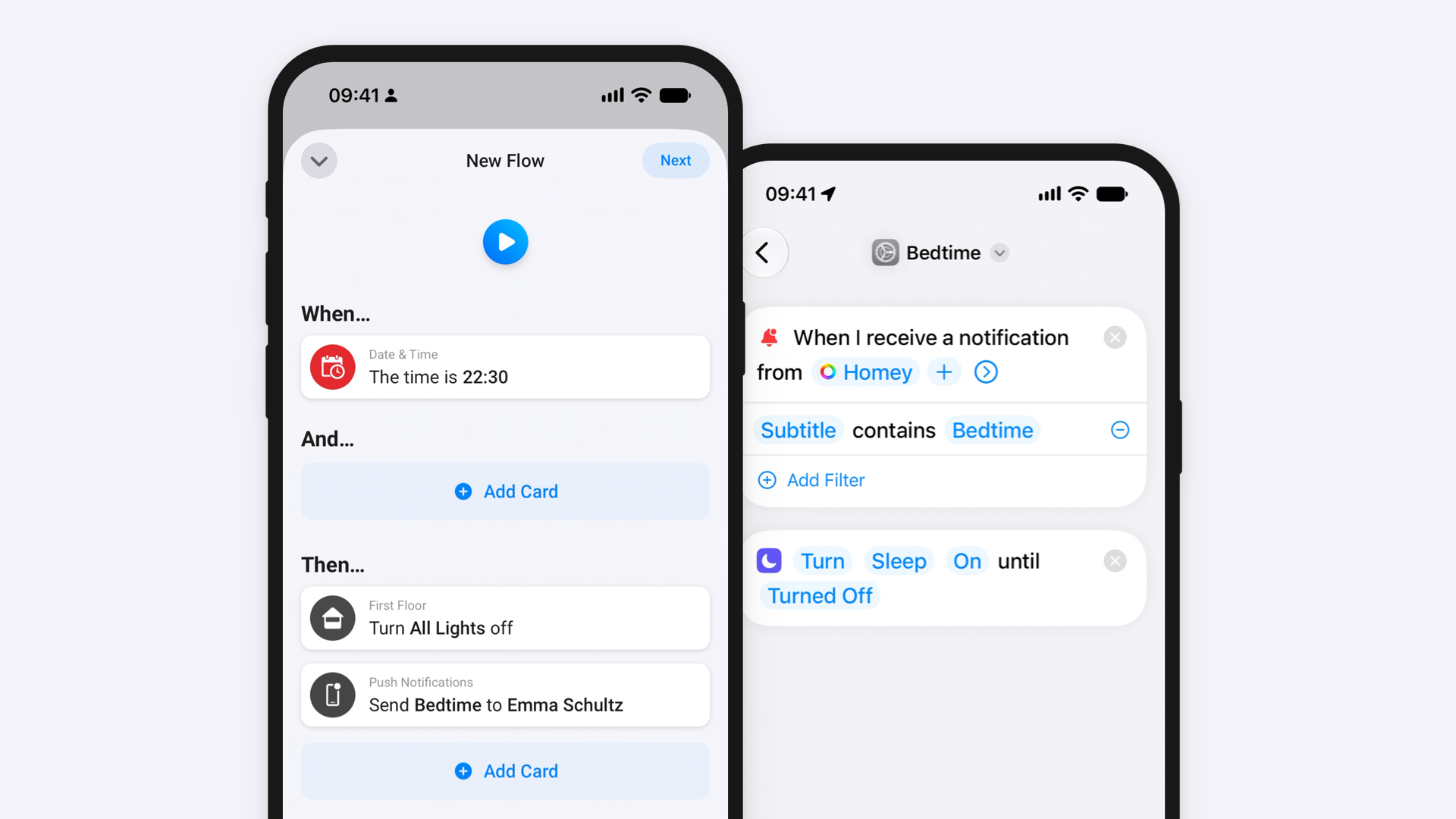
- Scheduling is supported through Flow cards (charge/discharge now or over a planned time window, measured at the battery or at the grid connection point), but the app has no schedule editor of its own.
- Pairing (mdns discovery) parses the hostname to detect a Homevolt device and serial number. If you change this pairing will likely fail.
- If mDNS discovery can't find your device (e.g. it's on a different subnet than Homey), you can enter its IP address manually on the pairing screen. If that IP later changes, use "Repair" on the device (in its advanced settings) to update it without re-pairing. The new IP is kept across app and Homey restarts. A fixed IP (DHCP reservation) in your router avoids the problem altogether.
SIGN-IN AND HTTPS
The app detects both by itself when you add or repair a device.
- HTTP or HTTPS: detected automatically. HTTPS is used whenever the Homevolt offers it, and turning it on or off later needs no repair.
- Sign-in off: nothing to do. You are never asked for a password.
- Sign-in on: the pairing screen asks for the device password (by default, the QR code printed on the device) or an access token, but only when the Homevolt requires one. For a device that is already added, enter it under the device's settings, Sign-in, or under Repair. Entering it on one Homevolt device saves it for the battery, grid sensor and solar devices.
- Access tokens can be revoked without changing the device password. Create one in the Homevolt's web interface under API tokens, with the "auth" scope: that is enough for everything the app does, including the charge/discharge Flow cards.
- If a firmware update turns sign-in on, the devices go unavailable with a message saying so, and Homey notifies you once. Enter the password or token and they recover.
- Once a password is rejected, the app stops sending it until you enter it again, so Homey cannot lock you out of the Homevolt's own web interface.
- The HTTPS certificate is not verified, because nothing on a home network can issue one Homey could check. The connection is encrypted, but this does not prove the answering device is your Homevolt.
Read more ›