





Control infrared devices via Google Home with Homey
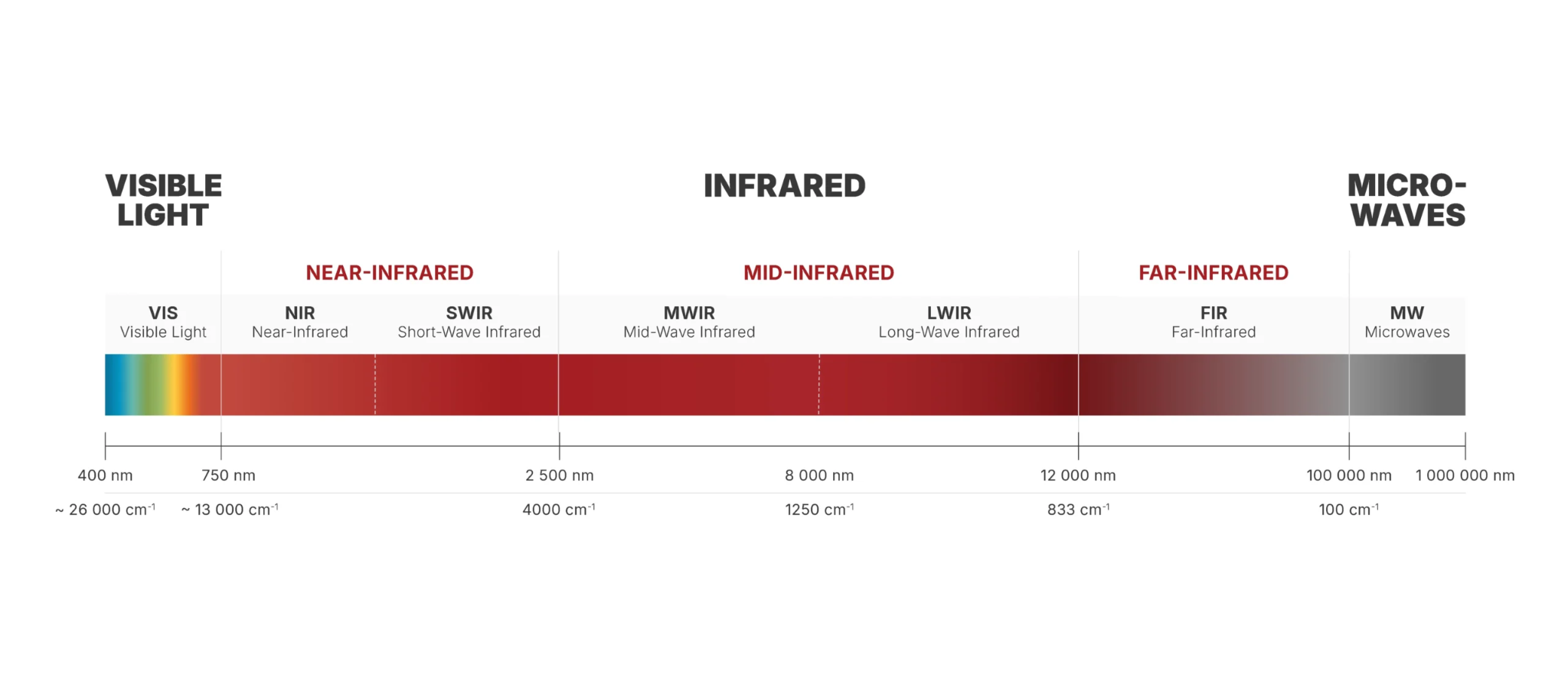
Infrared devices don’t connect directly to Google Home. Most infrared-controlled devices, such as TVs, air conditioners, or audio systems, are not smart by themselves and can’t communicate with Google Home.
To control infrared devices using Google Home, you need a smart home hub that can send infrared commands and make those actions available to Google’s platform.
Homey acts as that bridge, exposing infrared devices to Google Home. Homey stays in control of sending infrared commands and Google Home becomes an additional way to trigger those actions.
What you need
To control infrared devices via Google Home, you need:
- A Homey Pro with built-in Infrared support or a Homey Bridge, in combination with Homey Pro mini, Homey Cloud or Homey Self-Hosted Server.
- One or more infrared devices configured in Homey
- A Google account and the Google Home app
Infrared devices are set up in Homey by learning or selecting the correct infrared signals.
What “exposing devices” means for infrared
When Homey exposes an infrared device to Google Home, it does not share a real device with a live connection.
This means:
- Homey sends infrared commands on your behalf
- The infrared device does not report its status
- Google Home cannot check whether a command succeeded
Google Home sends a command to Homey, and Homey sends the infrared signal.
A simple way to think about it is that Homey turns infrared actions into smart home buttons. In fact, Homey represents infrared-controlled products as virtual smart devices with defined capabilities (such as on/off, temperature, input selection).
How to expose infrared devices to Google Home with Homey
Infrared devices are exposed to Google Home through Homey as complete devices, not as individual actions. You don’t pair infrared devices directly with Google Home, and you don’t manually choose which infrared actions to expose.
The process works like this:
- Set up the infrared device in Homey
Install the appropriate infrared app in Homey (for example, a TV or air conditioner app) and configure the device so Homey can send the correct infrared commands.
Once configured, Homey creates a device that represents the infrared-controlled product, including its available controls. - Link Homey in the Google Home app
Open the Google Home app, choose Link a service, select Works with Google, then choose Homey from the list and allow Google to access your Homey account. - Devices sync automatically
After linking, Google Home imports your Homey devices. Infrared devices appear as full devices with their supported controls, such as on/off, temperature, or mode selection, depending on the device type. - Exclude devices if needed
In the Homey app, you can choose to exclude specific devices from being exposed to Google Home. Excluded devices will not appear (or will be removed after the next sync).
After this, you can control infrared devices using Google Home or Google Assistant. The infrared device is controlled only by Homey via stored Infrared commands and no additional steps are required.
How the connection works
Behind the scenes, the setup works like this:
- Google Home sends a command
This can be a voice command or an action in the Google Home app. - Homey receives the command
Homey interprets the request as an infrared action. - Homey sends an infrared signal
The infrared device receives the command but does not send feedback.
What you can do in Google Home
Once exposed, infrared devices typically appear as simple controls, such as:
- On and off actions
- Mode or input selection
- Volume or temperature commands
You can:
- Use Google Assistant voice commands
- Trigger actions in the Google Home app
- Include infrared actions in Google Home routines
What to keep in mind
A few important points:
- Infrared devices do not report their current state
- Google Home cannot verify whether a command worked
- If someone uses the original remote, Homey won’t know
- Advanced logic and state handling stay in Homey
Use Google Home to trigger action and Homey to manage logic and consistency.
In short
Infrared devices can’t connect directly to Google Home and don’t report their status.
Homey exposes infrared actions by sending commands on your behalf and making them available in Google Home.
Homey stays in control of the infrared signals and Google Home becomes an easy way to trigger them.
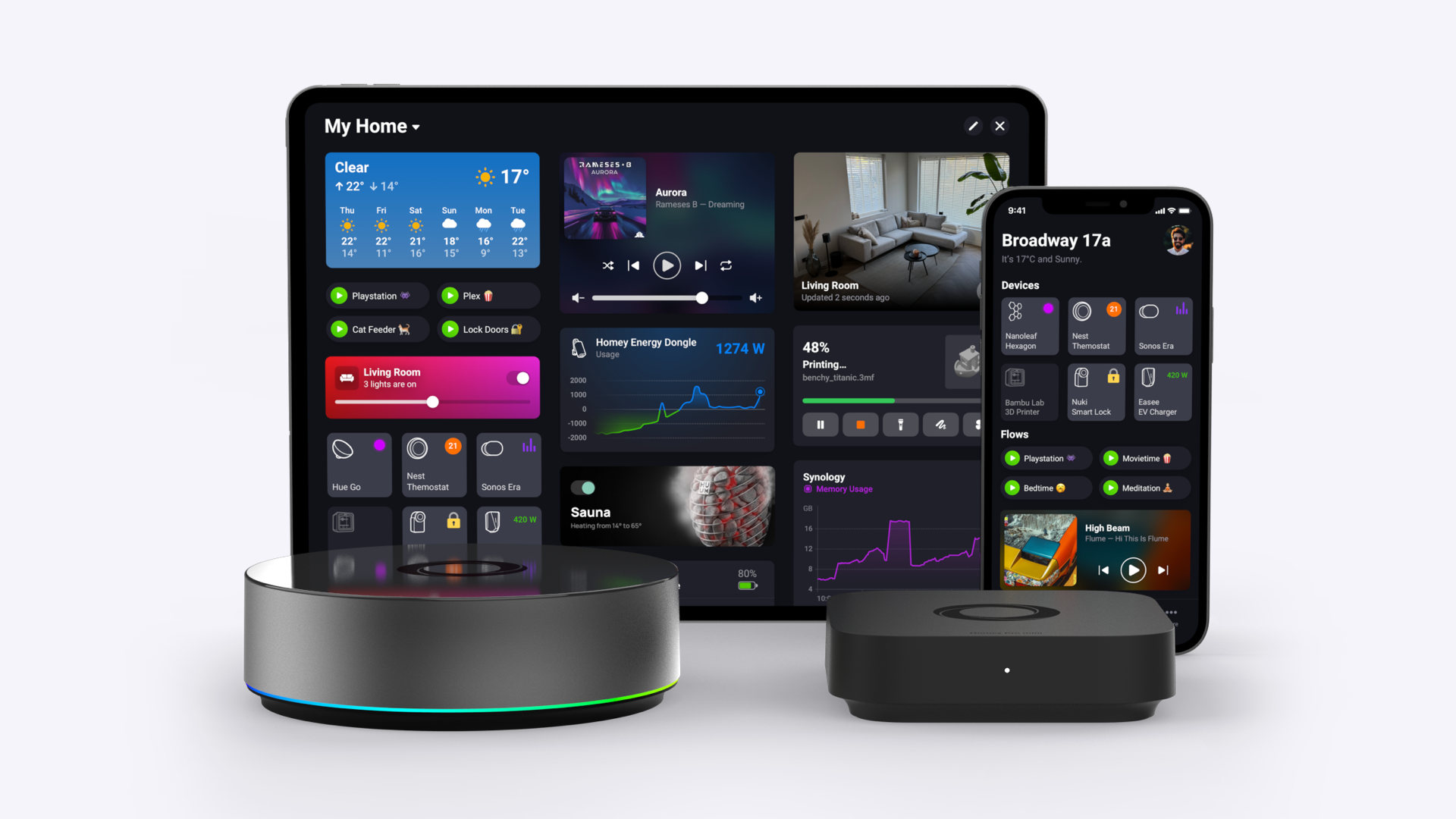
Discover more about Homey by connecting additional devices through the Homey App Store. Control them with the Homey App and create your own automations with Flows and Advanced Flows. Monitor your smart home using Dashboards, and gain deeper understanding with Homey Energy and Insights.
Smart home technologies and platforms supported by Homey
Smart homes often use multiple wireless technologies and platforms. As a powerful smart home hub, Homey supports a wide range of communication standards, including Zigbee, Z-Wave, Matter, Thread, KNX, 433 MHz, Wi-Fi, Bluetooth and Infrared.
Homey also integrates with popular smart home platforms such as Amazon Alexa, Google Home and Apple Home. By combining multiple technologies and platforms in one system, Homey allows devices from different ecosystems to work together in one flexible smart home setup.


