



Controlling Homey with Voice Assistants
Saying a phrase and watching your home respond still feels like the future, even after years of smart speakers sitting on kitchen counters. The real value shows up once voice control moves past single devices and starts triggering entire routines. That's where Homey and its Flows system come in.
Homey doesn't just let Amazon Alexa, Google Assistant, and Siri turn on a light bulb. It lets them launch full automations, the same Flows you've already built, with nothing more than your voice.
This guide walks through how to connect Homey to each of the three major voice assistants and start running your favorite Flows by voice, whether you're on a Homey Pro, a Homey Pro mini, or a Homey Self-Hosted Server.
Why Voice Control Still Matters in a Smart Home
Tapping an app icon works fine when you're already holding your phone. It stops being convenient the moment your hands are full, you're halfway out the door, or you're already in bed and don't want to reach for a device. Voice control fills that gap.
The bigger payoff isn't asking Alexa to dim one lamp. It's saying a single phrase that closes the blinds, lowers the thermostat, and locks the front door at the same time. That's what a Homey Flow does, and once it's connected to a voice assistant, it becomes a spoken command instead of a manual routine you have to remember and trigger yourself.
How Homey Connects to Voice Assistants
Homey sits between your devices and the voice assistant you use every day. Instead of pairing each light bulb, plug, or sensor directly with Alexa or Google Home, you connect it to Homey once. From there, Homey exposes your devices and Flows to whichever assistant you've linked, so one setup step covers your entire smart home rather than one device at a time.
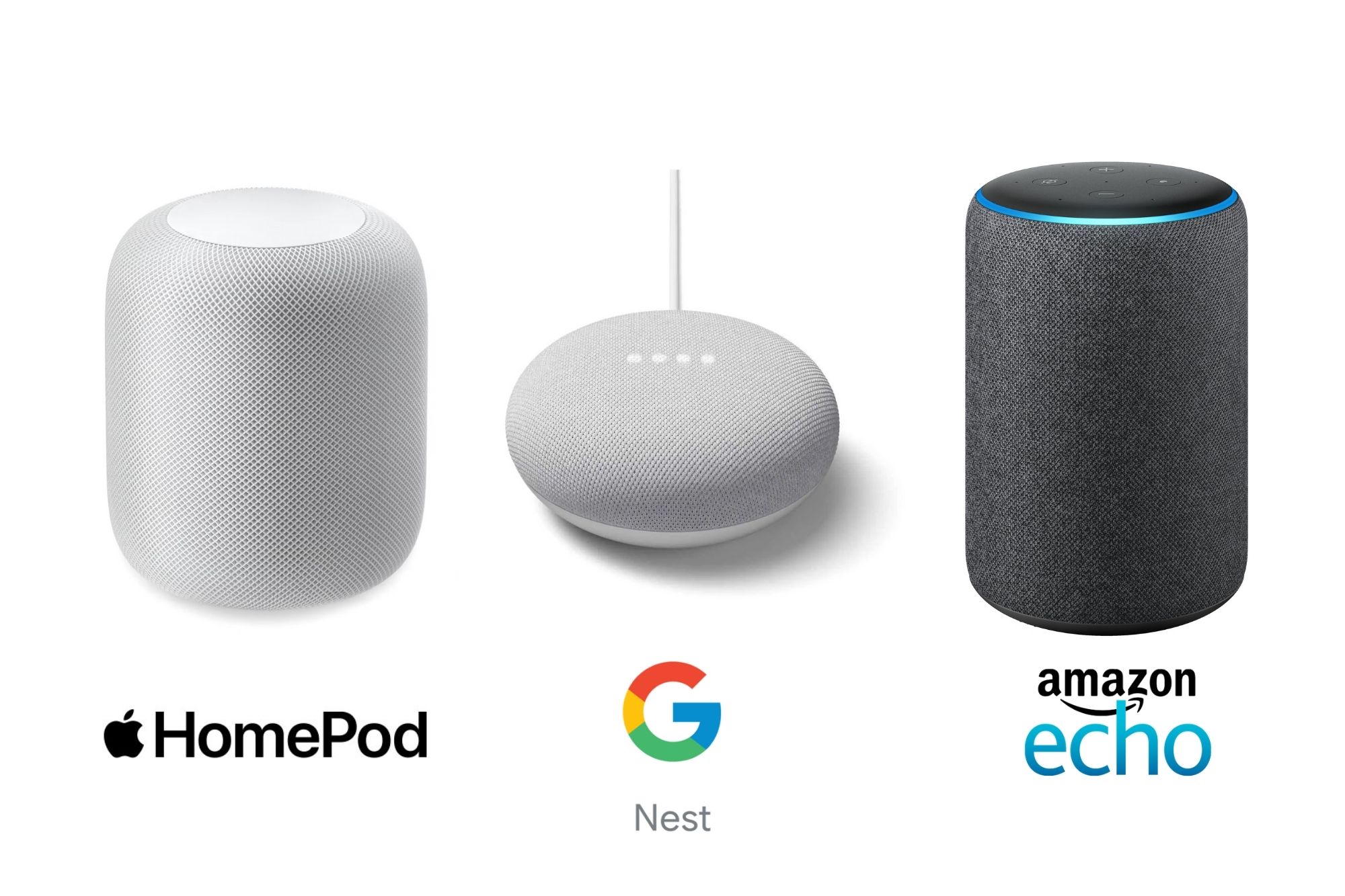
That link happens through a one-time setup for each assistant. Alexa uses the Homey Skill, Google Assistant and Google Home use account linking inside the Google Home app, and Siri uses Apple's Shortcuts app rather than a traditional skill. Once that connection exists, your Homey Flows become available to trigger by voice, no matter which Homey hardware you're running things on, whether that's a Homey Pro, a Homey Pro mini, or a Homey Self-Hosted Server.
If you're still filling out your device lineup, Homey's Best Buy Guides are a great starting point for picking hardware that plays well with voice control from day one.
Running Flows with Amazon Alexa
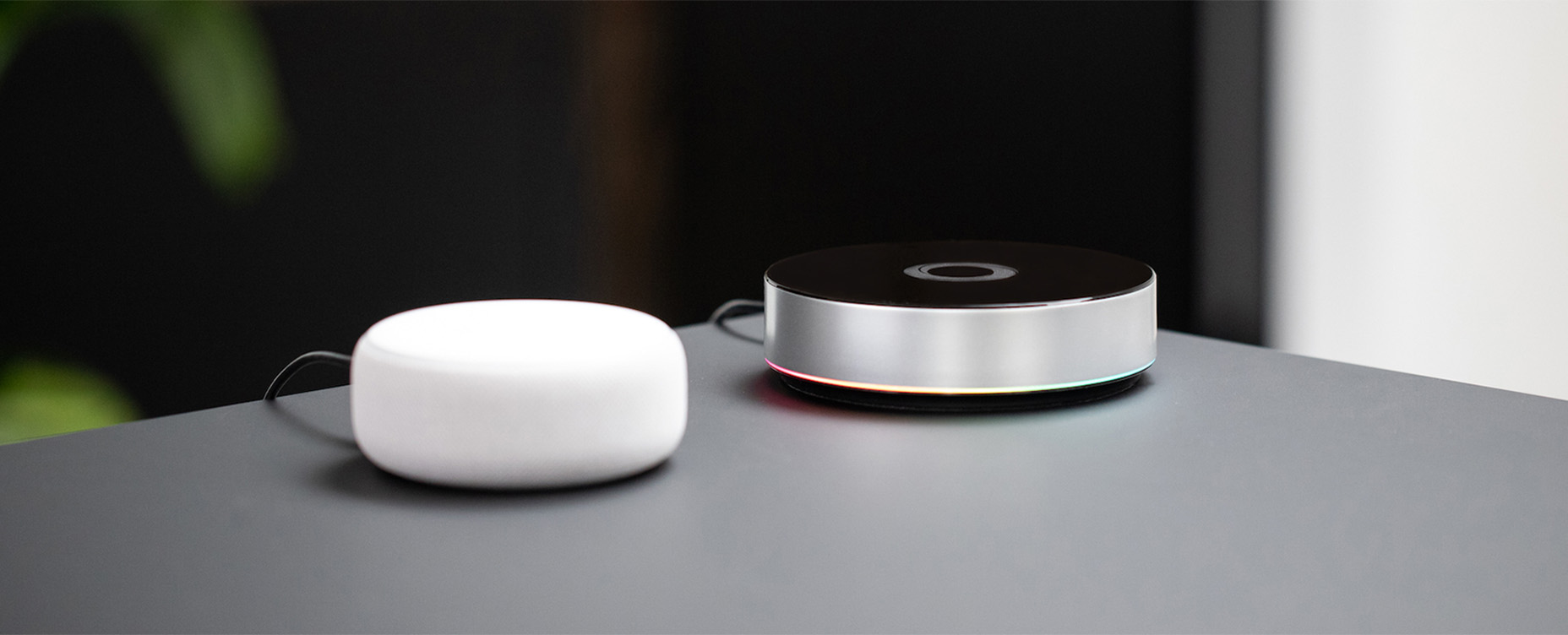
Once you've set up the Homey Skill for Alexa, Alexa automatically discovers your favorite Flows and lists them as Scenes. You'll find them under the Devices tab in the Alexa app, grouped under Scenes in the top menu. Starting one is as simple as saying, "Alexa, run the [Flow Name] scene." No extra setup is required for that basic command.
If you want more control over how a Flow gets triggered, you can build it into an Alexa Routine instead:
- Open Routines in the Alexa app and tap the plus icon in the upper right corner.
- Give the routine a name and choose a trigger under When This Happens.
- Tap Add an Action, then select Smart Home, then Control Scene.
- Pick the Flow you want that trigger to run.
This is useful if you'd rather use a custom phrase, a scheduled time, or another Alexa trigger instead of the default Scene name.
One thing worth remembering: when you favorite a new Flow in Homey, Alexa won't pick it up automatically. Say "Alexa, discover devices" to refresh the list. You can learn more in the full setup guide to starting Flows with Amazon Alexa.
Running Flows with Google Assistant or Google Home
Google handles Flows a little differently. After you've connected Homey to Google Assistant or Google Home, favorited Flows sync over but they won't show up in your device list. They're voice-only.
Here's how to get a Flow ready to run with Google Assistant:
- Open the Homey app and tap Flow in the tab bar.
- Long press the Flow you want to use, then tap Favorite.
- Open the Google Home app and pull down until the refresh icon appears, or just say "Hey Google, sync my devices."
- Once synced, start the Flow by saying "Hey Google, start [Flow name]."
Naming matters more here than with the other assistants. Google Assistant needs to parse the Flow name as a spoken phrase, so short, clear names work better than anything long or oddly worded. If a Flow won't start reliably, renaming it is usually the fix. Homey covers the full process in its guide to starting Flows with Google Assistant or Google Home.
Running Flows with Siri Shortcuts

Siri works through Apple's Shortcuts app instead of a dedicated skill. Once you've installed the Homey app on iOS, Shortcuts automatically finds your Flows and makes them available to add as actions.
To set one up:
- Open the Shortcuts app and tap the plus icon in the top right corner.
- Search for Homey, then select Start a Homey Flow.
- Choose the Flow you want to trigger.
- Name the shortcut and save it.
From there, saying "Hey Siri, [shortcut name]" runs the Flow. If you're working with an Advanced Flow, make sure it includes a Start block, since Siri and Shortcuts need that to trigger it correctly.
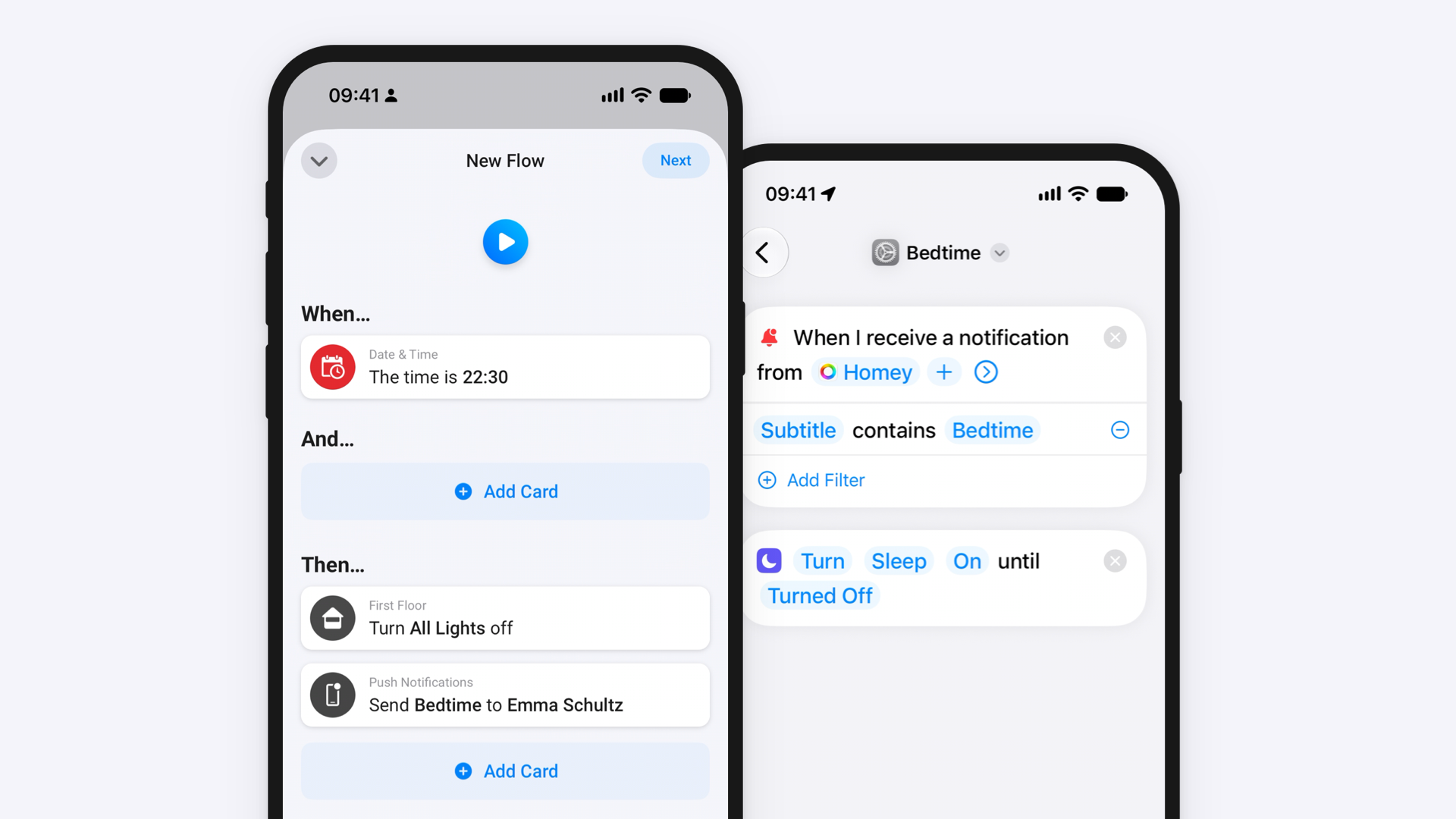
Shortcuts also opens the door to automation that has nothing to do with your voice. You can set a Flow to run when your phone's alarm goes off in the morning, or when your iPhone taps an NFC tag by the front door. Full setup steps are in Homey's guide to starting Flows with Siri.
Choosing the Right Voice Assistant for Your Setup
Most households already lean toward one ecosystem based on their phone, speakers, or existing habits, and Homey works comfortably alongside any of them. Each assistant simply approaches Flows a bit differently.
Alexa treats your Flows as Scenes and gives you Routines for building custom triggers around them, which suits anyone who wants more flexibility in how a Flow gets started. Google Assistant keeps things voice-first and rewards clear, well-named Flows. Siri stands apart by extending beyond voice entirely, since Shortcuts can trigger a Flow from a location, a time of day, or another app on your phone, not just a spoken command.
None of these options requires giving up the others. Homey doesn't lock you into a single assistant, so you can connect more than one and use whichever fits the moment.
Getting Started
The setup for each assistant takes a few minutes, and most of it only needs to happen once. After that, your Flows are one phrase away, whether you're already deep into Homey Flows or just getting your first devices connected. If you're still building out your smart home, Homey's Best Buy Guides are a great place to find devices that fit into Flows cleanly from the start.
Once your Flows are voice-ready, the real test is simple. Pick your busiest daily routine, whether that's leaving for work or winding down at night, and turn it into one Flow you can trigger with a single sentence.
FAQ
Do I need a specific Homey model to use voice assistants?
No. Voice assistant integration works whether you're running a Homey Pro, a Homey Pro mini, or a Homey Self-Hosted Server. The connection happens through Homey's software, not through specific hardware, so the setup steps for Alexa, Google Assistant, and Siri stay the same across all three.
Can I use more than one voice assistant with Homey at the same time?
Yes. Homey doesn't limit you to a single assistant. You can connect Alexa, Google Assistant, and Siri all at once and use whichever one fits the moment, since each connects to Homey independently.
Why isn't my new favorite Flow showing up in Alexa?
Alexa doesn't refresh its Scene list automatically. After favoriting a new Flow in Homey, say "Alexa, discover devices" to update the list so the Flow becomes available as a Scene.
Why won't Google Assistant start my Flow by voice?
This usually comes down to the Flow's name. Google Assistant and Google Home need to recognize the name as a spoken phrase, so if a Flow isn't starting reliably, renaming it is the first thing to try.
Can Siri trigger a Flow without me saying anything?
Yes. Through the Shortcuts app, Siri Shortcuts can trigger a Homey Flow based on non-voice events too, such as your phone's alarm going off or your iPhone tapping an NFC tag. This goes beyond voice control into general phone-based automation.
Glossary
Flow
A Homey automation made up of a trigger, one or more conditions, and one or more actions. Flows can be started manually, on a schedule, by a device event, or by a voice assistant once connected.
Homey Skill
The integration that connects Homey to Amazon Alexa. Enabling the Homey Skill in the Alexa app links your Homey account, letting Alexa discover your devices and favorite Flows.
Scene
How Alexa displays a Homey Flow. Favorited Flows appear under Scenes in the Alexa app, and saying "Alexa, run the [Flow Name] scene" starts them.
Advanced Flow
A more complex version of a Flow built with Homey's visual card-based editor, allowing branching logic and multiple paths. Advanced Flows need a Start block to be triggered by Siri or Shortcuts.
Siri Shortcut
An action created in Apple's Shortcuts app that links a spoken phrase, or another trigger like a location or time, to a specific Homey Flow.


