



Homey Self-Hosted Server vs Home Assistant
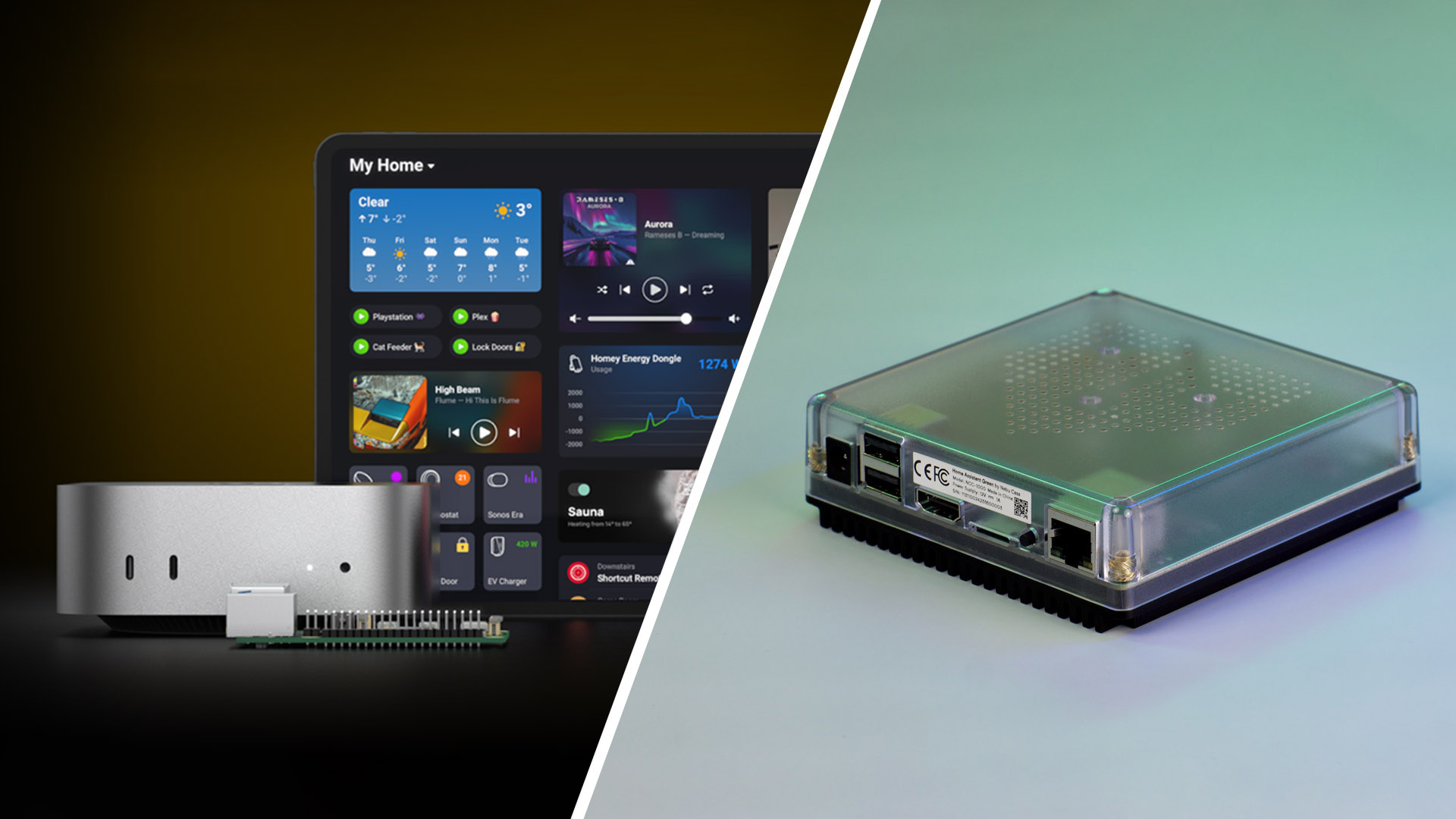
Homey Self-Hosted Server and Home Assistant both run on hardware you already own, from a Raspberry Pi to a NAS or a home server. The real differences show up in how you install each platform, how you connect wireless devices, and how much of the system you want to maintain yourself. Let’s look at how they compare.
What You Should Consider
- Different Approaches
- Installation and Hardware
- Ease of Use
- Device Control
- Wireless Connectivity and Device Compatibility
- Automation
- Scripting and Customization
- Updates and Maintenance
- Backups and Migration
- Security and Privacy
- Community and Support
- What About Costs?
- Choosing Between Homey Self-Hosted Server and Home Assistant
Different Approaches
Homey Self-Hosted Server is a software-only version of Homey. It is based on the operating system that powers Homey Pro and runs in a Docker container on your own hardware. The Homey team develops and maintains the software, so you get the same app, Flows, and Homey Energy that Homey Pro users have. You supply the hardware, and Homey supplies the rest.
Home Assistant is a free, open-source platform owned by the Open Home Foundation, a non-profit organization. A large community contributes integrations, dashboards, and automations, and you can change almost every part of the system. That openness gives you a lot of freedom, but it also means you set up and maintain everything yourself.
Installation and Hardware
Neither platform comes with a dedicated hub, so your first decision is where it will run. From there, the installation paths differ quite a bit.
Installing Homey Self-Hosted Server
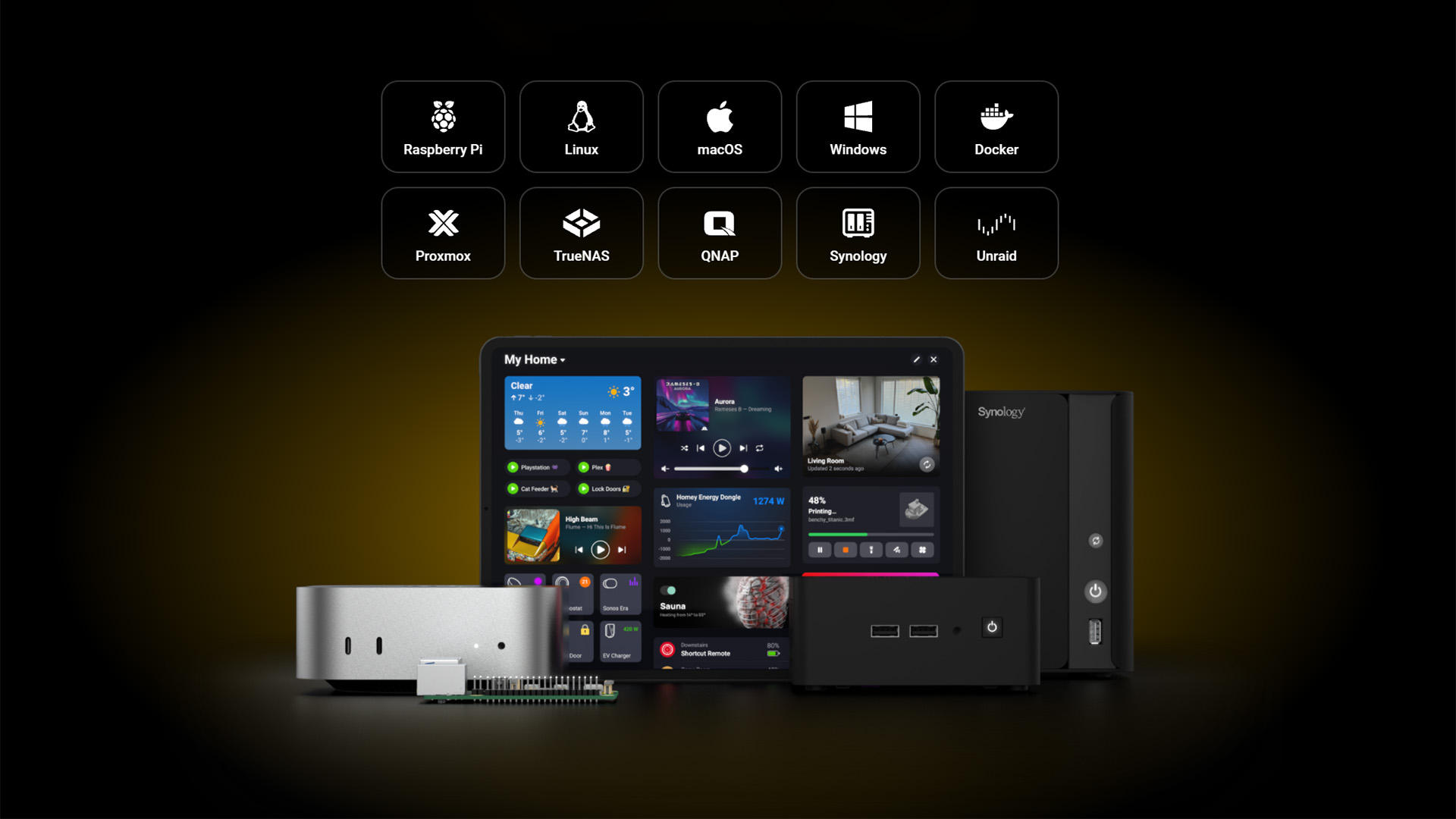
Homey Self-Hosted Server runs on any Linux-based system with Docker. It supports Raspberry Pi, Linux, macOS, Windows, Docker, Proxmox, TrueNAS, QNAP, Synology, and Unraid, which covers most home servers and NAS units. The system requirements are modest. You need a 64-bit Intel, AMD, or Arm processor, at least 1 GB of free RAM and 1 GB of storage, and a dedicated IP address on your local network. Homey recommends a CPU of at least 1.5 GHz, ideally with more than one core.
Once the container is running, you finish the setup in the Homey app by adding a new Homey and selecting Self-Hosted Server. From that point, the experience matches Homey Pro. Every new installation includes a 30-day free trial with no payment details required, so you can test it on your own hardware before you commit.
Installing Home Assistant
Home Assistant offers several installation types, with Home Assistant Operating System as the recommended option. It installs as a complete operating system on a Raspberry Pi 4 or 5, an x86-64 computer, or a virtual machine, and it supports apps, one-click updates, and built-in offline backups. Home Assistant Green, a small device sold with the operating system preinstalled, is the quickest way to get started.
Home Assistant Container runs in Docker on a system you already manage, which is similar to how Homey Self-Hosted Server works. However, the container version has no access to apps and requires manual updates. Some integrations, including Thread and Z-Wave, depend on apps, so they have no out-of-the-box support in this setup.
Ease of Use
Day to day, you spend most of your time in an app rather than on the server itself. That makes the interface just as important as the installation.
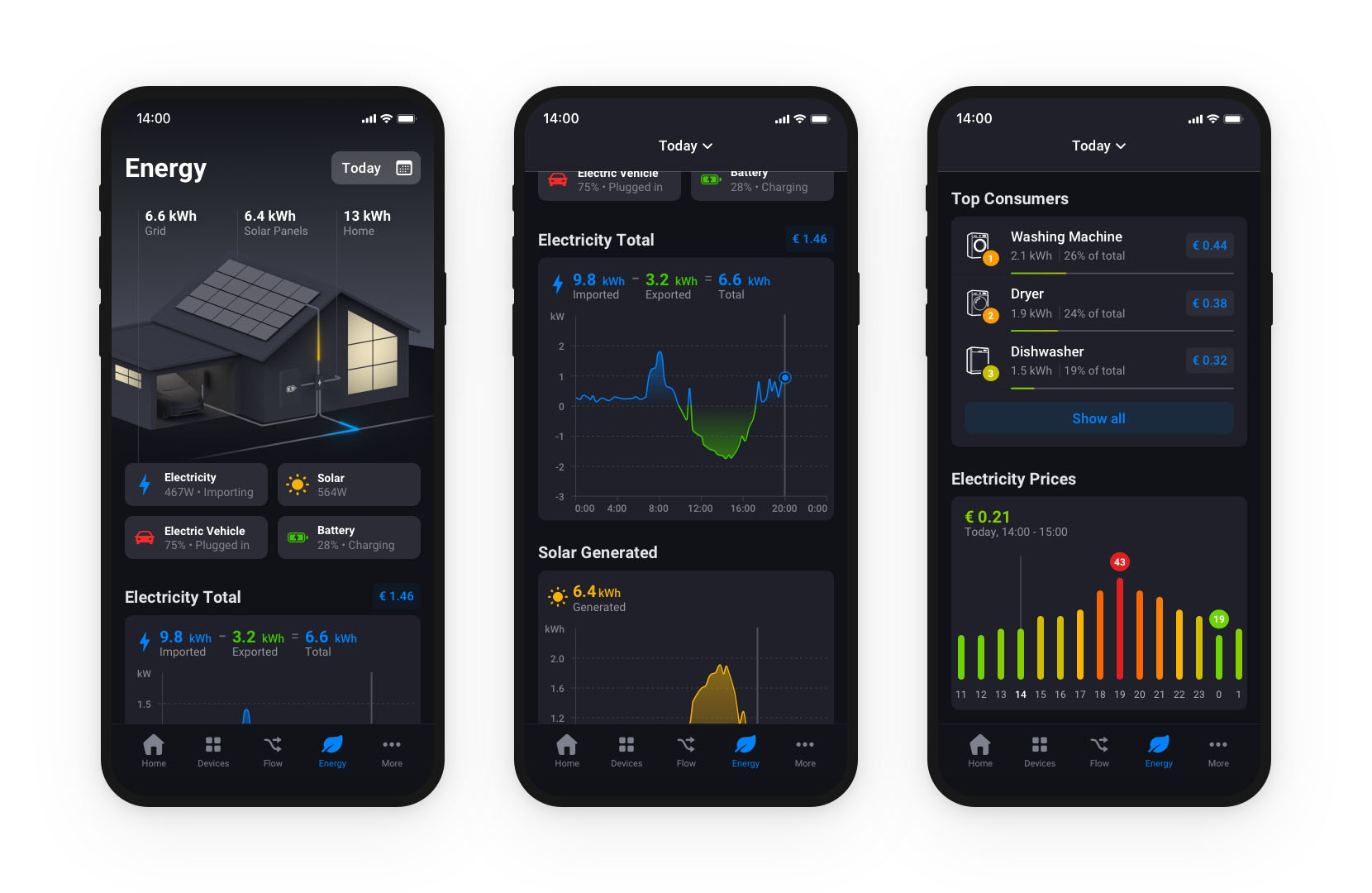
Homey Self-Hosted Server uses the same Homey mobile and web apps as Homey Pro. Adding a device follows guided pairing steps, and each brand integration installs as an app from the Homey App Store, much like apps on your smartphone. Even though the software runs on your own hardware, you never need to edit configuration files or learn a separate interface.
Home Assistant has improved its onboarding over the years, and many integrations now set up through the interface with automatic discovery. Still, the platform has a much steeper learning curve. Some devices need manual configuration, and getting the most out of Home Assistant often means reading documentation and community guides. If you enjoy that process, it is part of the appeal. If you don’t, it slows you down.
Device Control
Device control is the feature you use most often, whether you dim the lights in the evening or close the blinds in the morning.
In the Homey app, every device type has controls designed around its functions. Lights switch on with a single tap, while dimming and color controls sit one tap away. You can save lighting presets with Moods, follow device history over time with Insights, and build custom Homey Dashboards for a wall-mounted tablet or a quick overview of your home.
Home Assistant builds its interface around dashboards made of cards. You can edit them visually or in YAML, and the Home Assistant Community Store (HACS) offers many custom cards made by the community. This gives you a lot of design freedom. However, HACS content has no official review process, so quality and maintenance vary from one card to the next.
Wireless Connectivity and Device Compatibility
Connectivity is where the two platforms differ the most. Since neither runs on a hub with built-in radios, you need a way to reach devices that don’t connect through your home network.
Connectivity with Homey Self-Hosted Server
Out of the box, Homey Self-Hosted Server connects to Matter devices on your local network, devices with a local API over LAN, and devices and services through their cloud APIs. Matter over Thread also works when you already have a Thread Border Router at home, such as a compatible smart speaker or media hub. Self-Hosted Server can’t act as a Thread Border Router itself.
For Zigbee, Z-Wave, Bluetooth, 433 MHz, and Infrared devices, you add Homey Bridge. It pairs with your Self-Hosted Server and works fully locally, so these devices keep running without an internet connection. Adding more than one Homey Bridge enables Satellite Mode, which extends wireless coverage across larger homes. Homey Self-Hosted Server doesn’t support USB dongles, so Homey Bridge is how you add these protocols. Due to local regulations, 433 MHz transmission is turned off in the US, Canada, and South Korea.
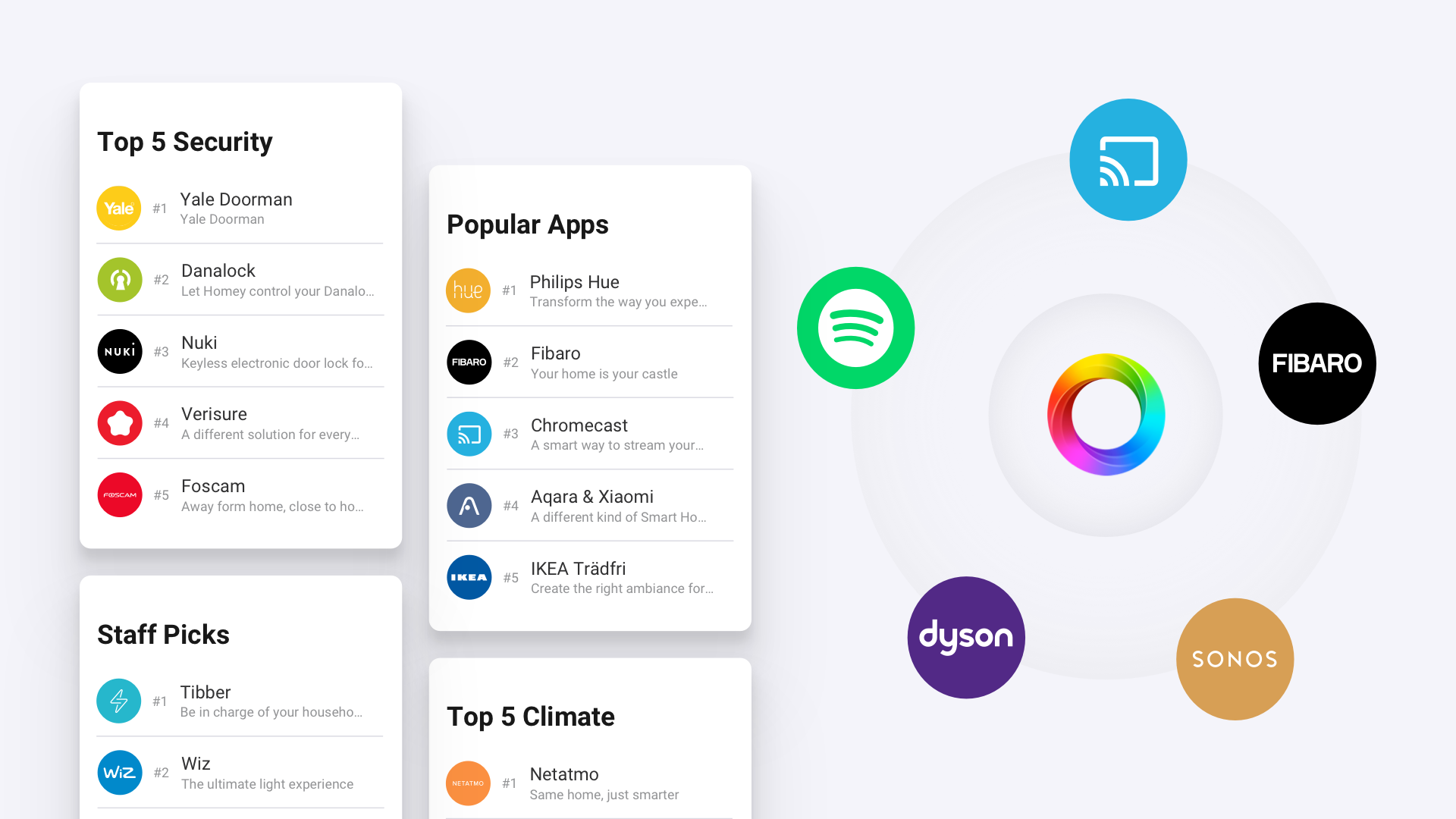
Through the Homey App Store, Homey supports over 2,000 brands and more than 70,000 different devices. Apps are reviewed before they are published, and official apps sit alongside community apps, so you can install them without writing any code.
Connectivity with Home Assistant
Home Assistant connects to Wi-Fi, LAN, and cloud devices through integrations, and it supports Matter as well. For Zigbee, Z-Wave, and Thread, you plug in a USB adapter, either Home Assistant’s own Connect ZBT-2 and Connect ZWA-2 or a compatible third-party model. These adapters are an extra purchase. With a suitable adapter on Home Assistant Operating System, Home Assistant can also run its own Thread Border Router.
The integration library is extensive, and community-built custom integrations fill many of the remaining gaps. These custom integrations don’t go through an official review, so their reliability depends on the individual developer behind them.
Automation
Automation is where a smart home starts working for you. It turns on the lights at sunset, lowers the heating when everyone leaves, and locks the door at night.
Automation with Homey Self-Hosted Server
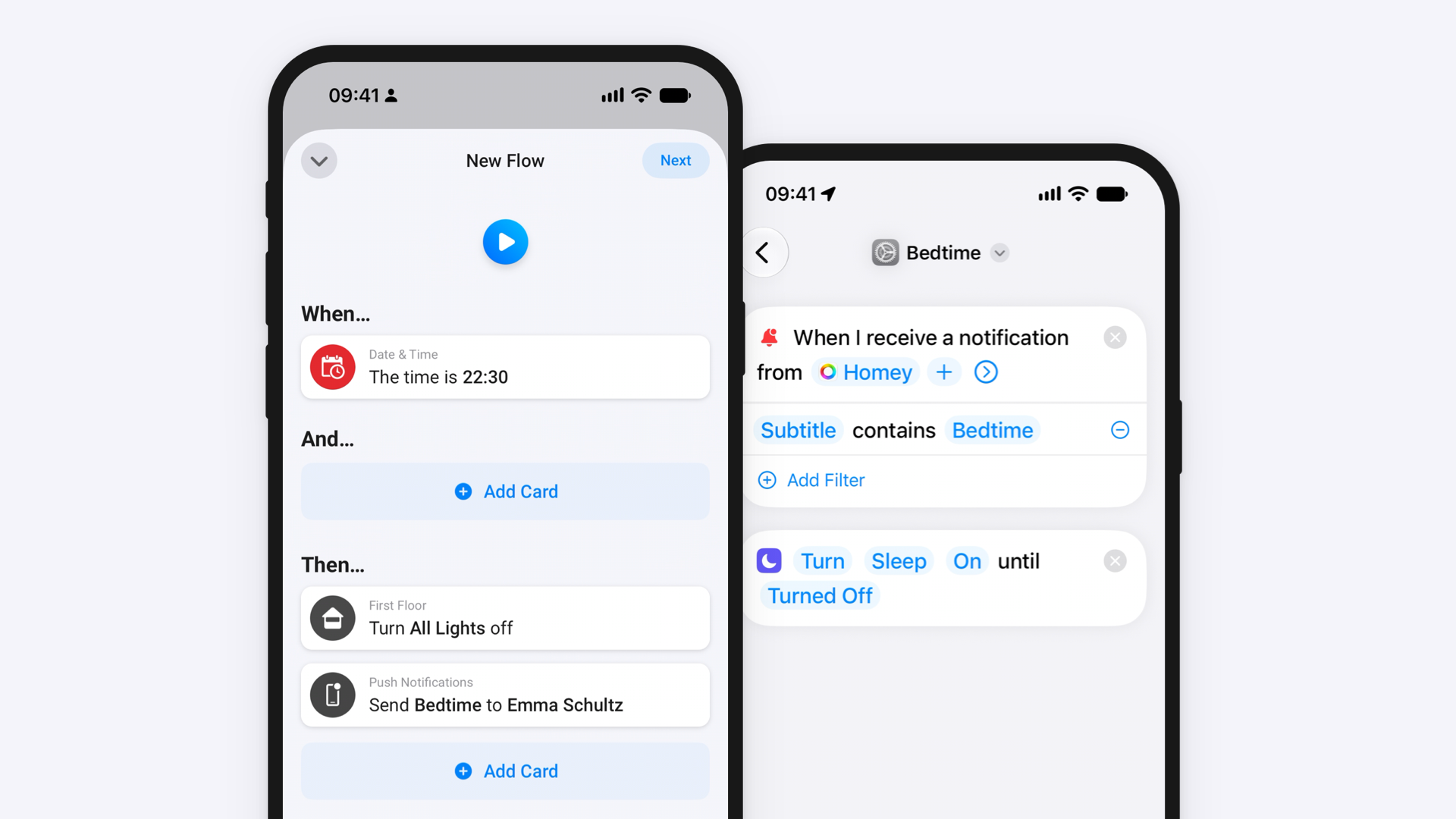
Homey Self-Hosted Server includes Flow and Advanced Flow, the same automation tools as Homey Pro. A Flow starts with a When card, checks conditions with And cards, and runs actions with Then cards. Every device and app you add brings new cards, so building an automation comes down to picking the right ones.
Advanced Flow places these cards on a visual canvas where you connect them freely, which suits automations with many branches. You can watch each step run in real time, so testing and fixing a Flow takes very little effort. Logic and variables let you store values and reuse them across Flows, and all automations run locally on your own hardware.
Automation with Home Assistant
Home Assistant automations consist of triggers, conditions, and actions. You can build them in the visual editor or write them in YAML, and templates let you calculate values while an automation runs. Scripts handle reusable sequences of actions, and scenes store device states you want to recall later.
Blueprints are automation templates shared by the community. You fill in a few settings, such as which motion sensor and which light to use, and the blueprint handles the logic. They save time, although more complex automations still require some familiarity with how Home Assistant structures its logic.
Scripting and Customization
When visual tools aren’t enough, both platforms let you go further with code. The depth of that customization is one of the clearest differences between them.
Homey Self-Hosted Server includes HomeyScript, which lets you write JavaScript with direct access to the Homey Web API. You can run scripts from a Flow or Advanced Flow, process data, and control devices in ways the standard cards don’t cover. Experiments give you access to features that are still in development, and developers can build their own Homey apps with the Homey Apps SDK.
Home Assistant offers customization at every level. Its open-source code lives on GitHub, and you can write custom integrations, modify configuration files, and install community content through HACS. For users who want to adjust every detail of their setup, this depth is the main reason to choose Home Assistant.
Updates and Maintenance
Running software on your own hardware means you also take care of its upkeep. How each platform handles updates affects how much time that takes.
Athom develops and tests Homey Self-Hosted Server, so updates come from a single source. You install them yourself by following the update steps for your platform, which on Docker means pulling the latest image and restarting the container. Your data lives in a separate folder outside the container, so it stays intact during updates. Since the software comes from one company and apps follow Homey’s developer guidelines, breaking changes are less frequent.
Home Assistant ships a new release every month, with smaller patch releases in between. On Home Assistant Operating System, you update with one click, while Container installations require manual updates. The fast pace brings new features and integrations quickly, but releases can also include breaking changes. Home Assistant lists these in the release notes and recommends reading them before every update.
Backups and Migration
Hardware fails eventually, so a reliable backup routine matters on any self-hosted system. It also decides how easily you can move to a new machine.
Homey Self-Hosted Server keeps all your user data in one folder, stored at ~/.homey-shs/ by default. To create a backup, you copy that folder to a safe location, and to restore it, you put it back before starting the server. Moving to new hardware works the same way, and you can transfer a lifetime license between installations from your Homey account. One limitation applies for now. You can’t transfer user data from Homey Cloud, Homey Pro, or Homey Pro mini to a Self-Hosted Server, so switching from an existing Homey means setting up your devices again.
Home Assistant Operating System includes a built-in backup system that saves your configuration, apps, and history. You can store backups locally or on a network share, and Home Assistant Cloud adds encrypted offsite backups. Container installations rely on your own backup routine for the configuration folder.
Security and Privacy
Your smart home knows when you are home and when you are away, so where that data lives matters. Both platforms take a local-first approach.
Homey Self-Hosted Server processes devices and Flows on your own hardware and keeps working when your internet connection drops. Cloud-based devices and a few features, such as push notifications, webhooks, and weather data, still need a connection. Secure remote access is included with every installation and works without port forwarding, although you can set up port forwarding or a reverse proxy if you prefer. With Local Users enabled, you can open Homey in a browser on your home network even when the internet is down.
Home Assistant also runs locally, and your data stays on your hardware by default. For remote access, you can subscribe to Home Assistant Cloud or build your own solution with a VPN, a reverse proxy, or port forwarding. The do-it-yourself route costs nothing, but you are responsible for configuring and securing it correctly.
Community and Support
When something stops working, it helps to know where you can turn. On self-hosted platforms, the answer looks different than it does with a ready-made hub.
Athom doesn’t offer direct technical support for Homey Self-Hosted Server installations, because the range of hardware and configurations is too wide. Support for billing questions is always available, and the Homey Community Forum has a dedicated Self-Hosted Server section where users share setups and solutions. The 30-day trial gives you time to confirm that everything works on your hardware before you pay. If you want full customer care, Homey Pro and Homey Pro mini include it.
Home Assistant relies on its global community, with an active forum, a Discord server, and extensive documentation. Home Assistant Cloud subscribers get support from Nabu Casa, but it covers subscription features only, not general Home Assistant questions.
What About Costs?
Both platforms run on hardware you may already own. The cost comparison therefore comes down to software, subscriptions, and extra radios.
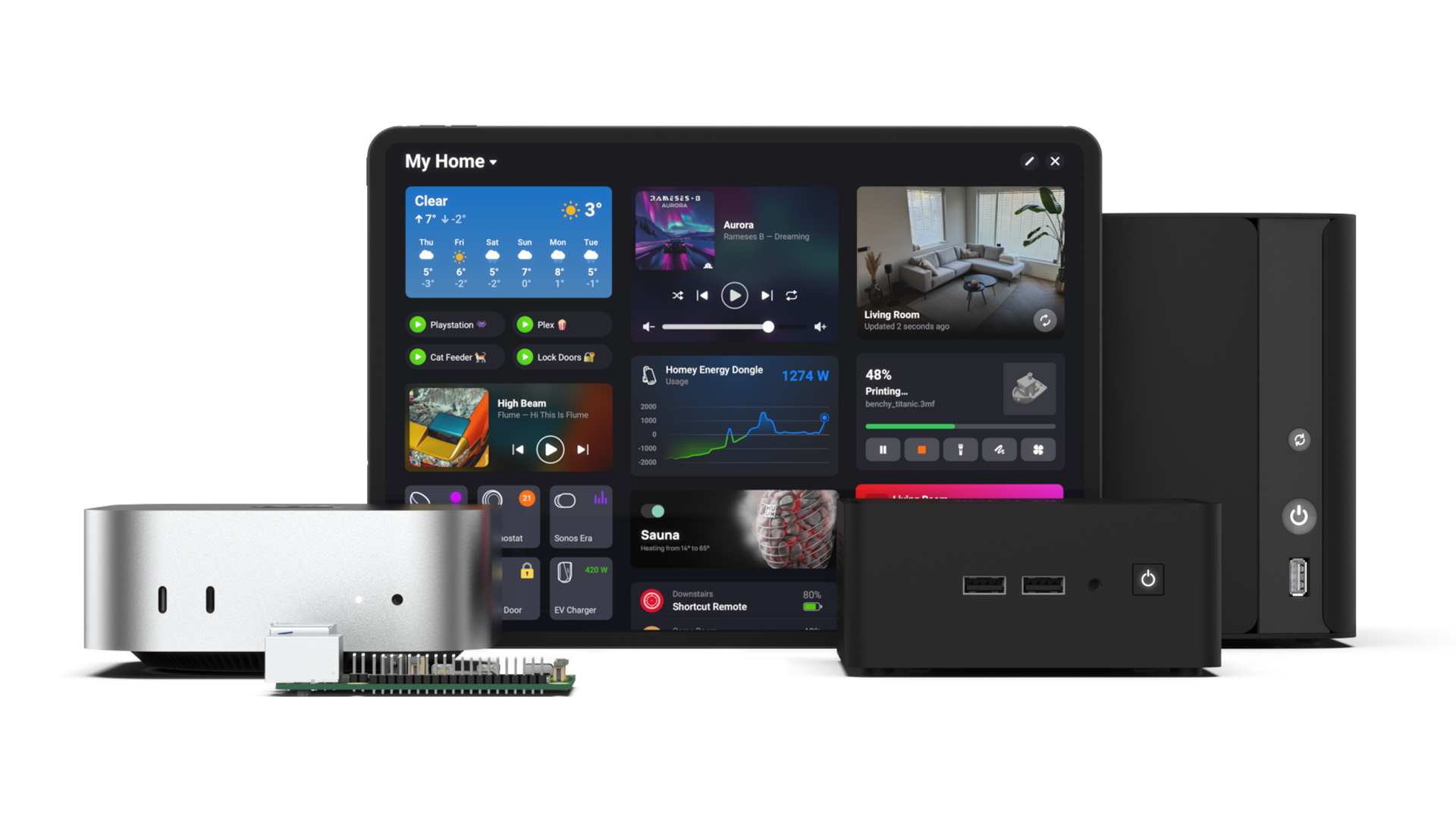
Homey Self-Hosted Server costs $4.99 per month after the free trial, or $149 for a lifetime license. Every plan includes Homey’s full set of cloud services, including secure remote access, the Homey App Store, push notifications, Amazon Alexa, Google Assistant, and Siri. If a monthly subscription lapses, the server goes offline until you renew or buy a lifetime license. Homey Bridge is sold separately for Zigbee, Z-Wave, Bluetooth, 433 MHz, and Infrared devices.
Home Assistant itself is free. Remote access, Alexa and Google Assistant voice control, and offsite backups come with Home Assistant Cloud, which costs $6.50 per month or $65 per year and becomes Home Assistant Link in December. You can skip the subscription and configure these features yourself, which takes time and technical skill. Zigbee, Z-Wave, and Thread adapters are extra purchases as well.
Over the long term, a Homey lifetime license costs less than three years of Home Assistant Cloud. Home Assistant without a subscription remains the cheapest option, as long as you are willing to set up remote access and voice integration on your own.
Choosing Between Homey Self-Hosted Server and Home Assistant
It really depends on how you want to spend your time. Homey Self-Hosted Server suits you if you already run a home server or NAS and want Homey’s app, Flows, and features like Homey Energy without buying a hub. You install it once with Docker, and from then on you manage your home through the same polished app as Homey Pro users. Remote access and voice assistants are part of the price, and Homey Bridge adds every major wireless protocol with fully local control.
Home Assistant suits you if you want control over every layer of your smart home and enjoy tinkering. You can choose your own adapters, write custom integrations, and shape the interface exactly the way you like. In return, you take on more setup, more updates to review, and more troubleshooting on your own.
If you would rather skip the server altogether, Homey Pro and Homey Pro mini combine the same software with built-in radios and dedicated customer care, ready to use right out of the box.
Frequently Asked Questions
Does Homey Self-Hosted Server work without an internet connection?
Yes. Like Homey Pro, Homey Self-Hosted Server keeps running local devices and Flows when your internet is down, including devices connected through Homey Bridge. Cloud-based devices and a few features, such as initial activation, push notifications, webhooks, and weather data, need an active connection.
Can I use a USB Zigbee or Z-Wave dongle with Homey Self-Hosted Server?
No. Homey Self-Hosted Server doesn’t support USB dongles. Instead, you connect Homey Bridge, which adds Zigbee, Z-Wave, Bluetooth, 433 MHz, and Infrared over your local network. Adding several Homey Bridges extends coverage through Satellite Mode.
What happens when my Homey Self-Hosted Server subscription ends?
Your server goes offline until you renew the monthly subscription or buy a lifetime license. Your user data stays in its folder on your hardware, so your setup returns once the server is active again. A lifetime license avoids this entirely and can be transferred between installations.
Can I move my Homey Pro setup to Homey Self-Hosted Server?
Not at the moment. You can’t transfer user data from Homey Cloud, Homey Pro, or Homey Pro mini to Homey Self-Hosted Server, so you need to add your devices and rebuild your Flows on the new installation.
Is Home Assistant completely free?
The software is free and open source. Optional costs include Home Assistant Cloud for easy remote access, voice assistant integration, and offsite backups, as well as USB adapters for Zigbee, Z-Wave, and Thread. You can replace the subscription with your own remote access setup if you have the technical skills.
Glossary
Docker
Software that runs applications in isolated containers on a host system. Homey Self-Hosted Server and Home Assistant Container both run this way, which keeps them separate from other software on the same machine and makes updates a matter of replacing the container image.
Thread Border Router
A device that connects a Thread mesh network to your home’s Wi-Fi or Ethernet network. Matter devices that communicate over Thread need one to reach your smart home platform. Many smart speakers, media hubs, and hubs such as Homey Pro include a Thread Border Router.
Satellite Mode
A Homey feature that links additional Homey Bridges to your Homey. Each Bridge extends Zigbee and Z-Wave mesh coverage and controls nearby 433 MHz, Infrared, and Bluetooth devices, which helps in larger homes or buildings with thick walls.
Reverse Proxy
A server that sits in front of your smart home platform and forwards requests from the internet to it. People often use one to reach a self-hosted system remotely through their own domain name with an encrypted connection.
Blueprint
A reusable automation template in Home Assistant. A blueprint contains the automation logic, and you fill in settings such as which sensor and which light to use. The community shares blueprints for common tasks like motion-activated lighting.


