



How Does Homey Portal Work?
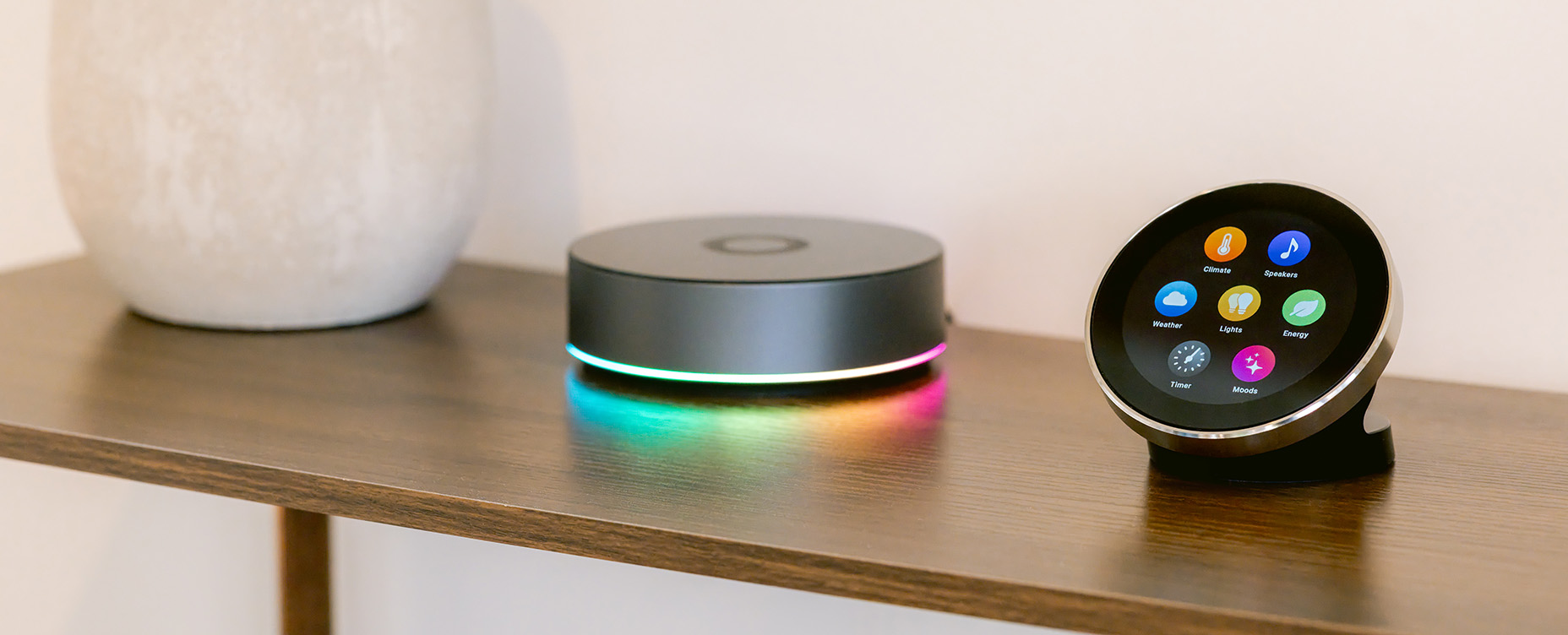
Homey Portal keeps smart home control simple. You tap the screen to choose what you want to adjust, then turn the ring to set it just right. After a few tries, those two motions start to feel like second nature, while reaching for your phone starts to feel like the extra step.
Tap and twist controls explained
Homey Portal works with two simple motions. You tap the screen to turn something on or off, or swipe and pick what you want to adjust, like a light, a speaker, or a mode. You twist the ring to fine-tune it, like raising the brightness or nudging the temperature up a degree.
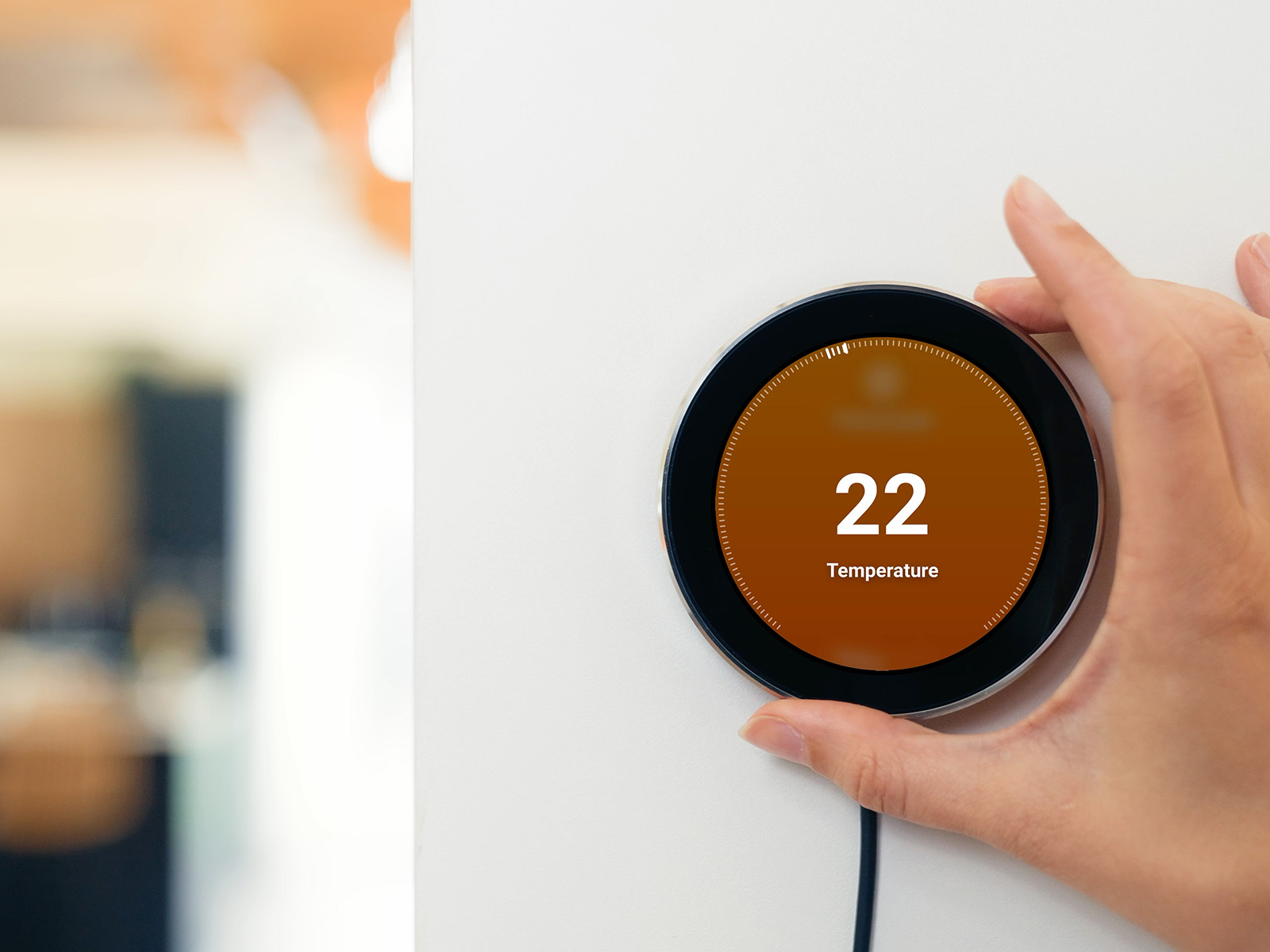
What the ring controls depends on what's on screen. On the lights screen, it sets brightness, temperature and color. On the speakers screen, it sets volume. When on the climate screen, it sets your target temperature. You can also drag a light around the screen to change its color, or swipe to skip to the next track.
A single or double tap on the ring runs a quick action you choose yourself, like toggling the lights or starting a Flow. It works without opening any app first. Easy, simple and intuitive.
Devices and zone controls
Homey Portal connects to your Homey smart home over Wi-Fi. It uses the zones you've already set up in the Homey app, so when you assign a Portal to a zone, like the living room, it automatically picks up every device already placed there.
There's nothing extra to configure device by device. Homey Portal simply reads the zone structure from your Homey and shows you what's inside it. If you want to reach a device in a different zone, you can either tap it directly or add it as a shortcut to your home screen.
Each Portal connects to one Homey system at a time. If you have more than one Homey, like a Homey Pro and a Homey Cloud account, you'd need the HomeyLink app to bring devices from the second one into view.
Built-in apps for lights, speakers, climate, and more
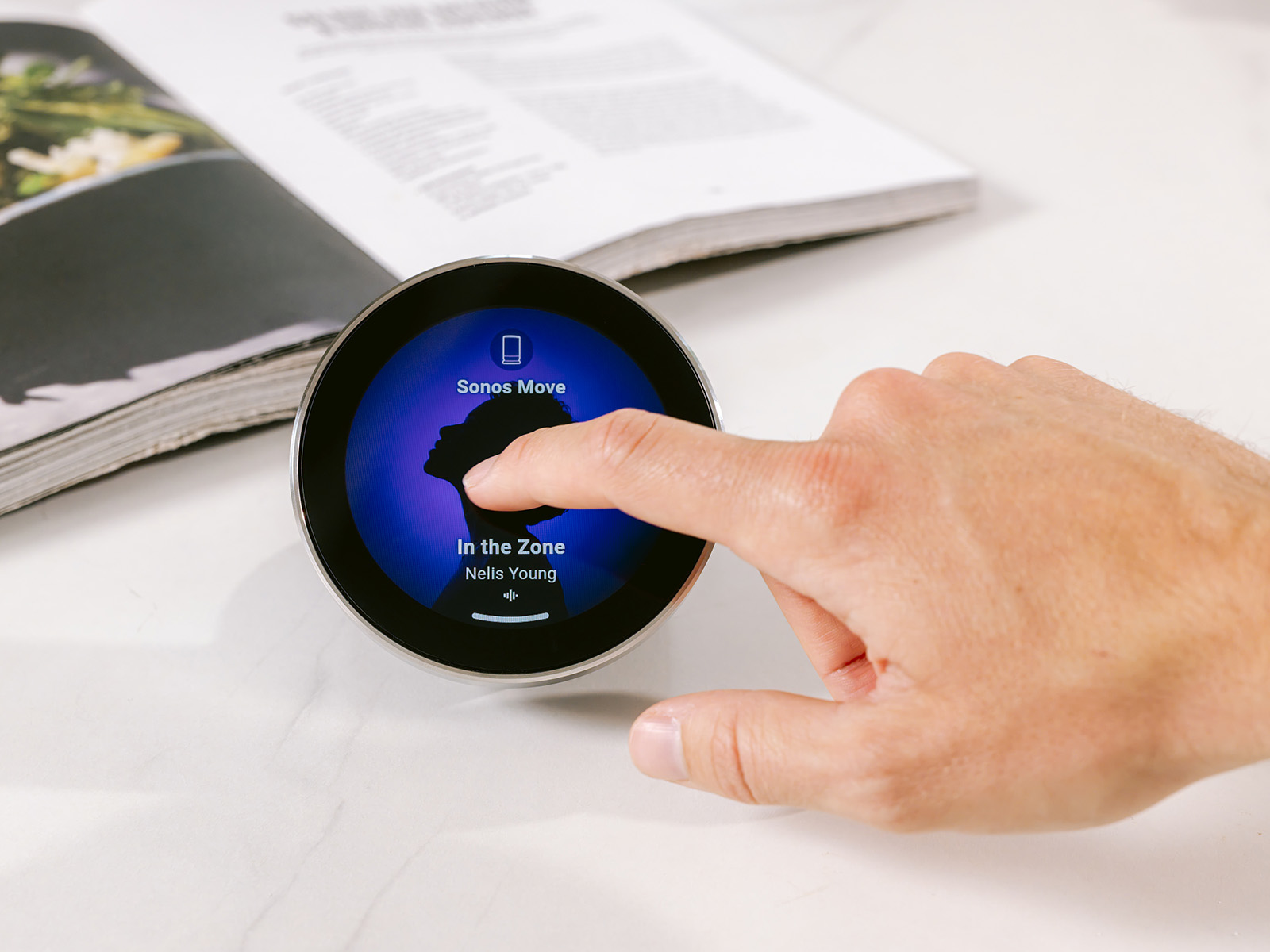
Homey Portal comes with a set of beautiful built-in screens for the things people adjust most often. The lights screen handles on and off, brightness, color, and warmth. The speakers screen shows what's playing and lets you adjust volume or skip tracks.
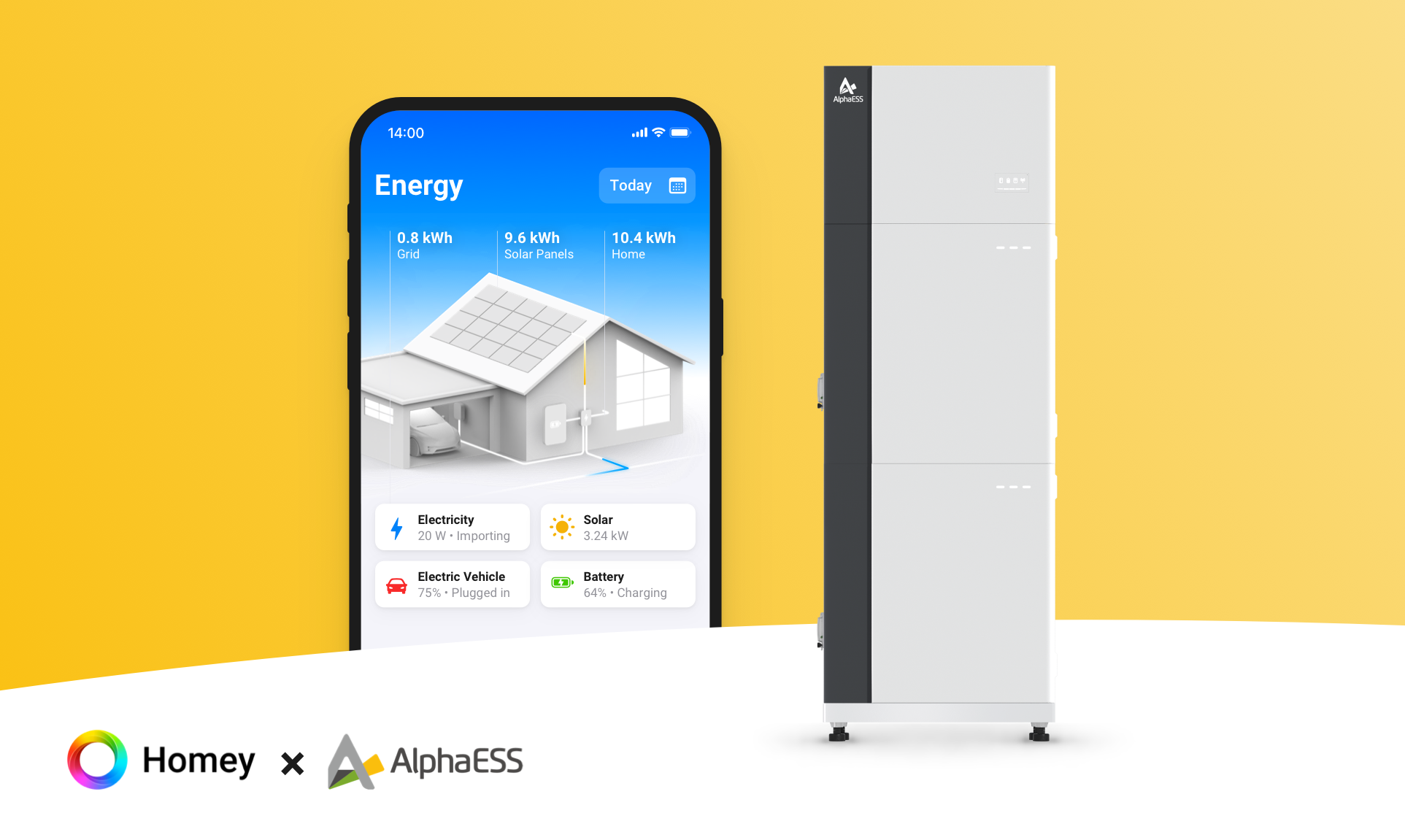
The climate screen shows the current and target temperature, with color cues for heating and cooling. The energy screen shows real time power use, what you've imported and exported, solar yield, and today's energy prices. There's also a timer screen for anything from a quick reminder to a longer countdown, and a weather screen with today's forecast and the week ahead.
Shortcuts, notifications, and quick actions
Beyond the built-in screens, you can build your own home screen. Pin the Flows, Moods, or devices you use most, spread them across multiple pages, and swipe between them. Icons can be dragged around and rearranged however you like.
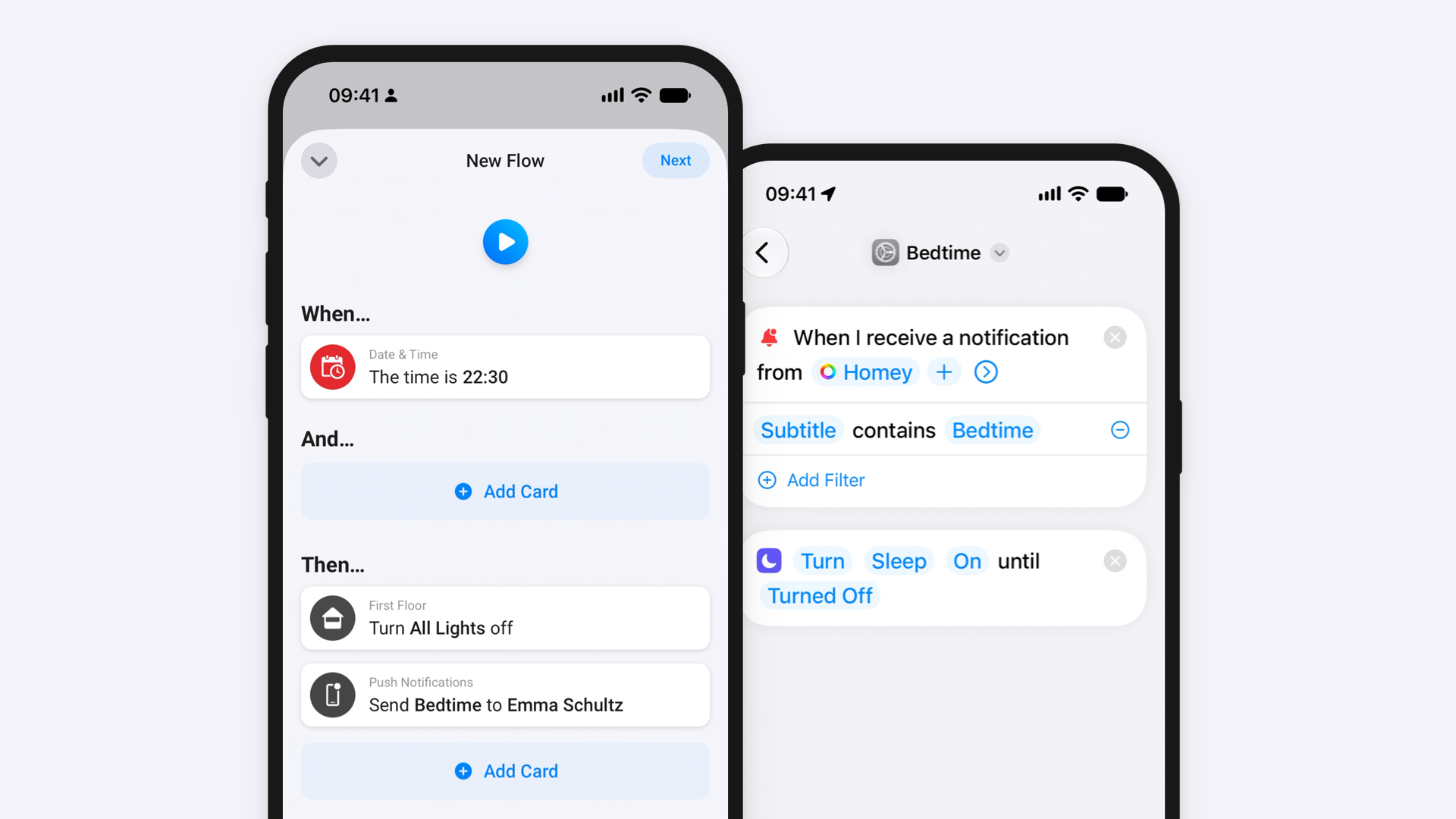
Homey Portal can also show notifications from your Flows. A Flow can ask you to confirm something, like pulling down the shades, show a reminder to water the plants, or display a live camera feed when someone's at the door. These show up right on the screen, so you don't need to reach for your phone.
The double tap quick action ties it all together. Set it once, and every double tap on the ring runs that same action, without needing to find it on screen first.
FAQ
Does twisting the ring always control the same thing?
No. The ring adjusts whatever is on screen at the time, such as brightness on the lights screen or volume on the speakers screen.
Can I view a live camera feed on Homey Portal?
Yes. A Flow can be set up to show a live camera feed on Homey Portal's screen, for example when someone rings the doorbell.
How does Homey Portal know which devices belong to its zone?
It reads the zone structure you've already set up in the Homey app. Whatever devices are placed in that zone appear automatically on the Portal.
Can Homey Portal control devices outside its assigned zone?
Yes. You can tap a device outside the current zone directly, or add it as a shortcut to the home screen for faster access.
Can I set my own double tap action on Homey Portal?
Yes. You can choose what a double tap on the ring does, such as toggling the lights, running a Flow, setting a Mood, or playing and pausing your speakers.
Glossary
Rotary ring
The stainless steel ring around Homey Portal's screen that turns to adjust settings like brightness, volume, or temperature.
Proximity sensor
A sensor that detects when someone is nearby and wakes the screen automatically, without needing a tap.
Shortcut
A Flow, Mood, or device pinned to Homey Portal's home screen so it can be reached with a single tap.
Homey app
The companion app for iOS and Android used to set up Homey Portal and manage its zones and shortcuts.
Flow notification
A message that appears on Homey Portal's screen when a Flow sends an alert, a reminder, or a camera image.


