Advarsel! Denne appen fungerer kanskje ikke som den skal.
Denne appen er under testing, og har aldri blitt anmeldt. Den fungerer kanskje ikke som forventet.
Vær ekstra forsiktig når du installerer denne appen.
« Tilbake til standardversjonen
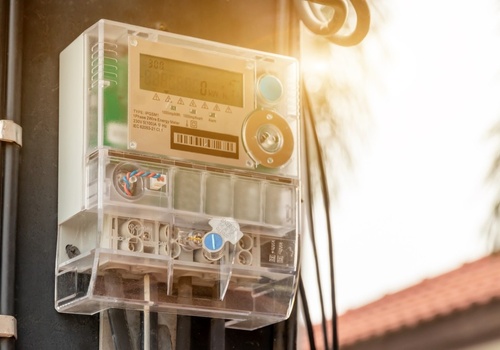
CEZ Distribution for Homey shows HDO and low-tariff switching times and lets you use tariff changes in your Flows.
Why version 2 was rebuilt:
The previous version depended on automatic sign-in to the CEZ customer portal. CEZ changed and strengthened the portal protection, which made this connection unreliable. Version 2 therefore focuses on the part that can be maintained from official public CEZ sources: HDO switching times. A CEZ portal account is no longer required. Meter readings and planned outages are no longer included.
What to do after updating
Existing users need to configure their HDO device once:
1. Open the HDO device in Homey and choose Repair Device.
2. Select your distribution area.
3. Search by EAN, meter serial number or supply-point number and enter the selected number.
4. Enter the displayed verification code and load the available signals.
5. Select the signal used by your HDO receiver and save the configuration.
The existing Homey device remains in place. Schedule updates then normally run automatically without another verification code. Homey displays the last successful update and the app notifies you if a refresh fails or if a new verification is required.
Refreshing signal assignments
Automatic refresh, Refresh switching times and Flow refresh update only the known signal schedule. Verify its assignment separately using Verify signal and refresh in app settings. Enter CAPTCHA, review the times and confirm the signal; devices and Flows are preserved. Signals without automatic schedule maintenance may also need CAPTCHA to refresh their schedule.
Optional automatic assignment checks apply to all devices. They are disabled by default with a 60-day interval. The first check is due after this interval from enabling; subsequent checks are counted from the last attempt or verification. If CEZ requests CAPTCHA, the app prompts for user action and pauses further checks until verification is completed. Existing times can still refresh, without confirming the assignment. If CEZ explicitly no longer lists the original signal and a replacement must be selected, the device stays unavailable until resolved.
App Settings show the last assignment verification separately from the last schedule refresh. The device also displays Selected HDO signal and Signal verification.
Please review Flows that used meter readings or planned outages, because those functions were removed in version 2. HDO and low-tariff Flows remain the focus of the app.
Timeline and push notifications are reserved for states requiring user action: HDO verification and signal selection. Transient failures and synchronization recovery remain in app history (latest 50 events). Enable Push in Homey Settings → Timeline → CEZ Distribution; app settings provide a link and an explicit test button. Alternatively, create a Flow using “HDO requires verification”.
Les mer ›
Flow-kort
Klikk på en enhet ovenfor for å kun vise relaterte Flow-kort.
Når …
HDO switching
HDO schedule refreshed
HDO switching
Tariff changed
HDO switching
Low tariff turned off
HDO switching
Low tariff turned on
HDO switching
HDO requires verification
HDO switching
Synchronization failed
HDO switching
HDO synchronization restored
Og …
HDO switching
Device has available HDO
HDO switching
Low tariff is active
HDO switching
Minutes to next change is less than Minutes
Så …
HDO switching
Refresh HDO schedule
HDO switching
Verify HDO signal assignment
Støtte
Har du et problem med denne appen?
Kontakt utvikleren her.
Nyheter
Versjon 2.3.2 — Schedule refresh, including Flow, no longer forces signal assignment verification. Optional automatic assignment checks have a configurable interval (60 days by default, disabled initially). Added a separate Verify HDO signal assignment Flow action. When CEZ requests CAPTCHA or signal selection, the app prompts for completion in settings. CAPTCHA errors appear prominently beside the code. History records successful manual verification and displays current status separately from earlier alerts.
Vis endringslogg