





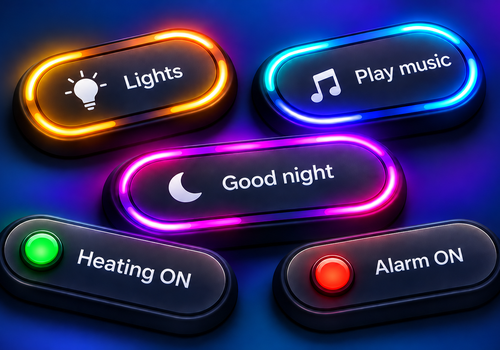
Dashboard Buttons
Action button Button is pressed

이 앱에 문제가 있습니까? 개발자 연락 방법 이메일 보내기.
버전 1.2.0 — Added Better Logic and Flow as status sources for Yes/No buttons, selectable text alignment, a Flow card to set the Yes/No status, and Spanish language support. Various minor improvements.
 이 앱으로 Homey 전체를 관리할 수 있습니다.
선택하신 Homey에 Dashboard Buttons이(가) 호환되지 않습니다.
 Dashboard Buttons이(가) 곧 Homey에 설치됩니다.
Rene van Ginkel 님께 앱을 잘 사용하고 있다고 알려주세요.
제안을 보내주셨다고 Rene van Ginkel 님에게 알리겠습니다.
 Belgium
 Bulgaria
 Croatia
 Cyprus
 Czech Republic
 Estonia
 Finland
 Greece
 Hungary
 Iceland
 Ireland
 Latvia
 Lithuania
 Malta
Malta
 Moldova
 The Netherlands
 Portugal
 Romania
 Slovakia
 Slovenia
 Türkiye
 Ukraine
 United Kingdom


