



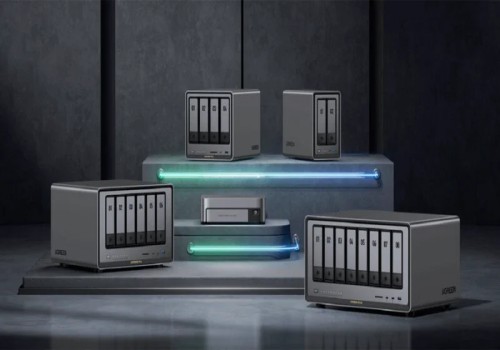
Ugreen NAS
온도가 변경되면
위의 디바이스를 클릭하면 관련 Flow 카드만 표시됩니다.

이 앱에 문제가 있습니까? 개발자에게 연락하는 방법 Homey 커뮤니티 포럼.
버전 1.3.5 — Fixed logging in on accounts that use two-factor authentication, which failed with a misleading "client is not compatible with the firmware" error. Pairing now asks for your authenticator code once and registers Homey as a trusted device, so you are not asked again. Also new: reconnect an existing NAS from Device settings > Repair without removing it, and a Flow condition "A backup task is running" so a Flow can wait until your backup has finished.
 Belgium
 Bulgaria
 Croatia
 Cyprus
 Czech Republic
 Estonia
 Finland
 Greece
 Hungary
 Iceland
 Ireland
 Latvia
 Lithuania
 Malta
Malta
 Moldova
 The Netherlands
 Portugal
 Romania
 Slovakia
 Slovenia
 Türkiye
 Ukraine
 United Kingdom


