


Start iPhone automations from your Flows
Your iPhone can already start a Homey Flow from Shortcuts, Apple’s app for automations. With iOS 27, it works the other way too. A notification from Homey can now start an automation on your iPhone.
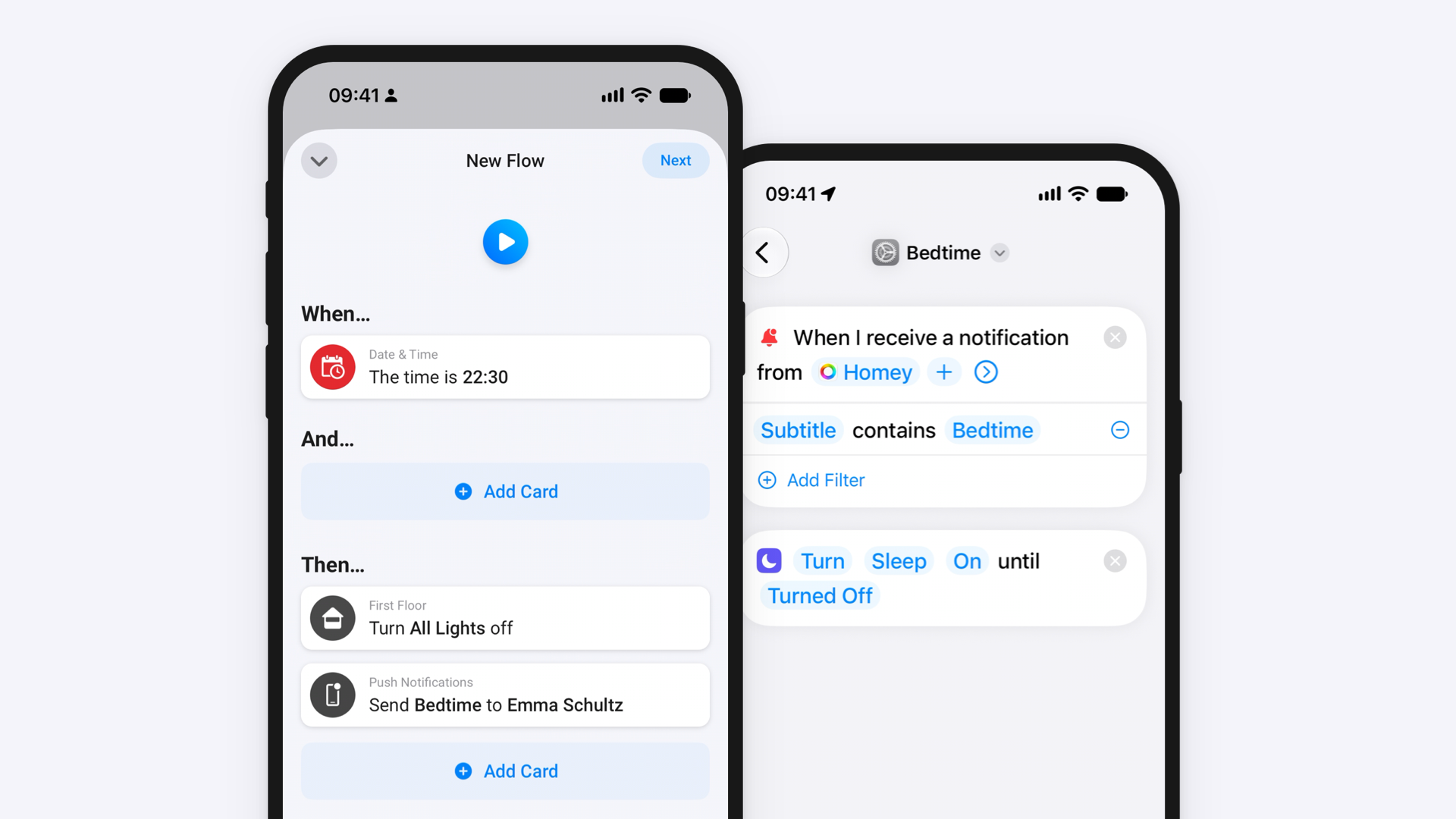
This guide builds one complete example: a bedtime Flow turns off your lights and sends a notification, and your iPhone switches to Sleep Focus.
What you need
- An iPhone with iOS 27 or an iPad with iPadOS 27.
- The Homey Mobile App, signed in, with notifications allowed.
Step 1: Build the bedtime Flow in Homey
- In the Homey Mobile App, create a new Flow.
- Add a When card for the moment bedtime starts, such as a time of day.
- Add a Then card that turns off the lights on your first floor.
- From Push Notifications, add the Then card that sends a message to a user.
- Enter “Bedtime” as the message and choose yourself as the user.
- Name the Flow “Bedtime” and save it.
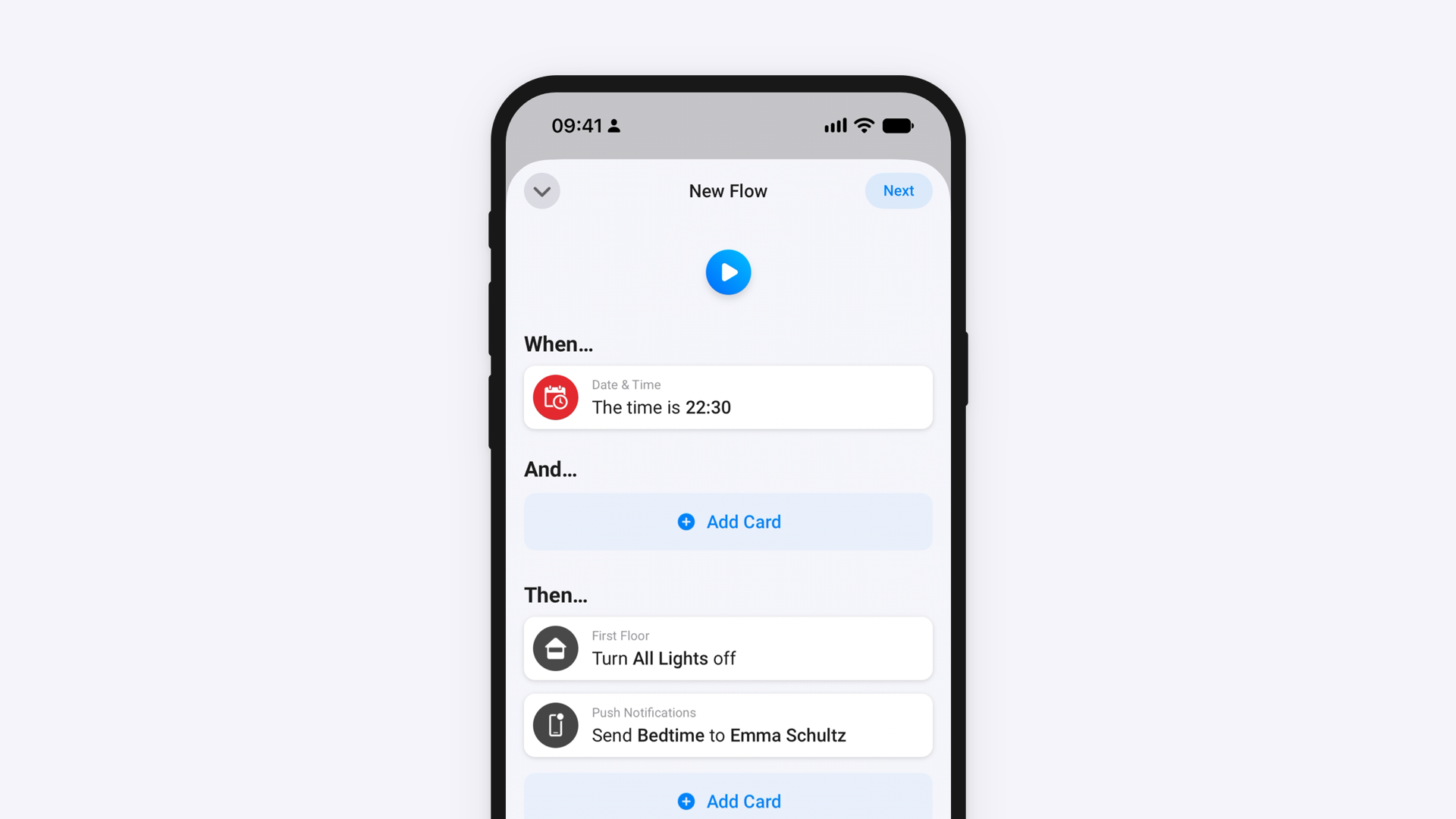
Use “Bedtime” in this Flow only. Your automation reacts to every Homey notification that contains the word, so another Flow that sends it would turn on Sleep Focus too.
Step 2: Create the automation in Shortcuts
- Open the Shortcuts app on your iPhone and go to Automation.
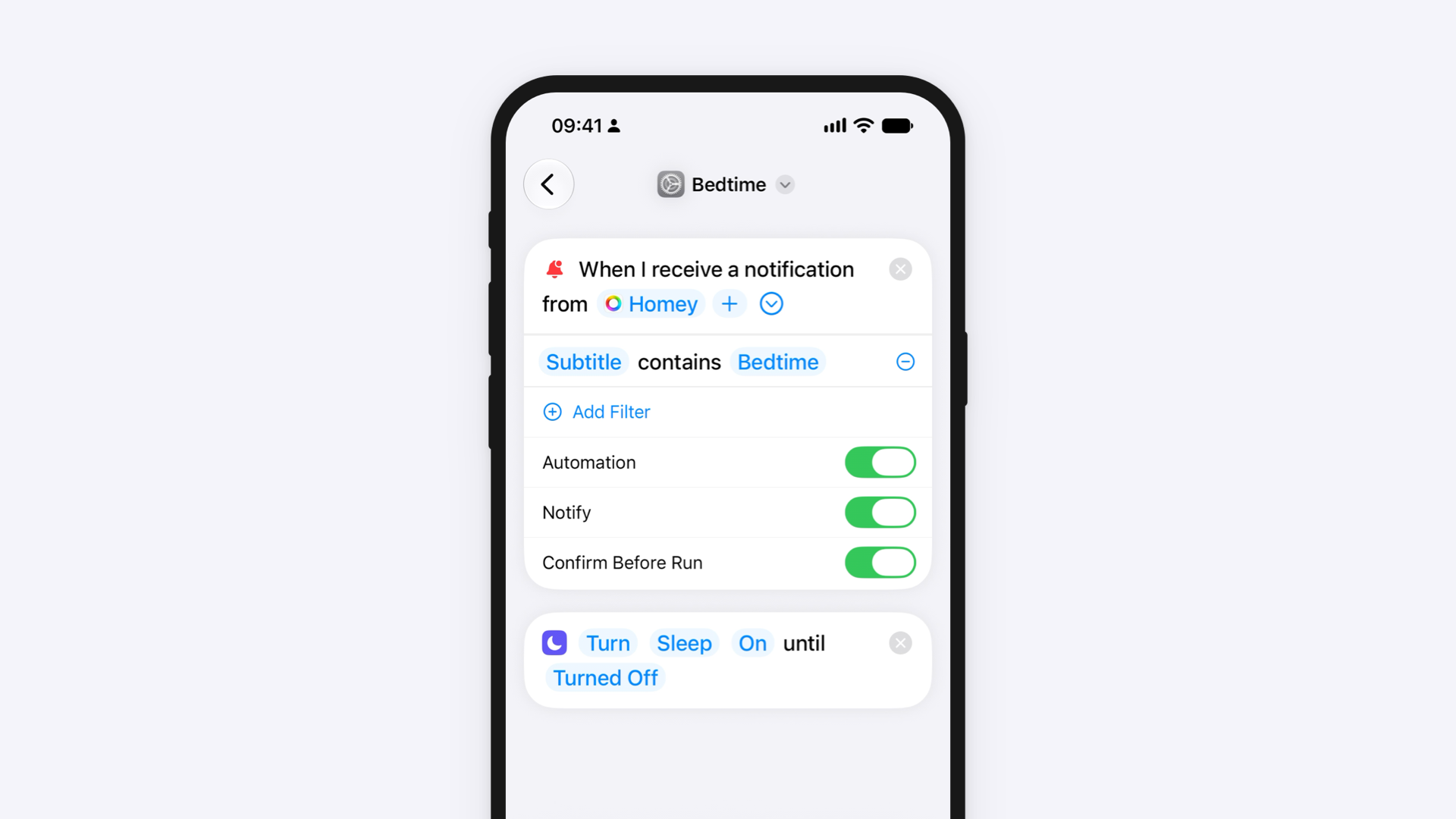
- Create a new automation and choose When I receive a notification from.
- Choose Homey.
- Tap Add Filter, choose Subtitle, and set it to contain “Bedtime”. A Title or Message filter doesn’t work with Homey notifications.
- Add the Set Focus action, choose Sleep, and set it to On.
- Save the automation.
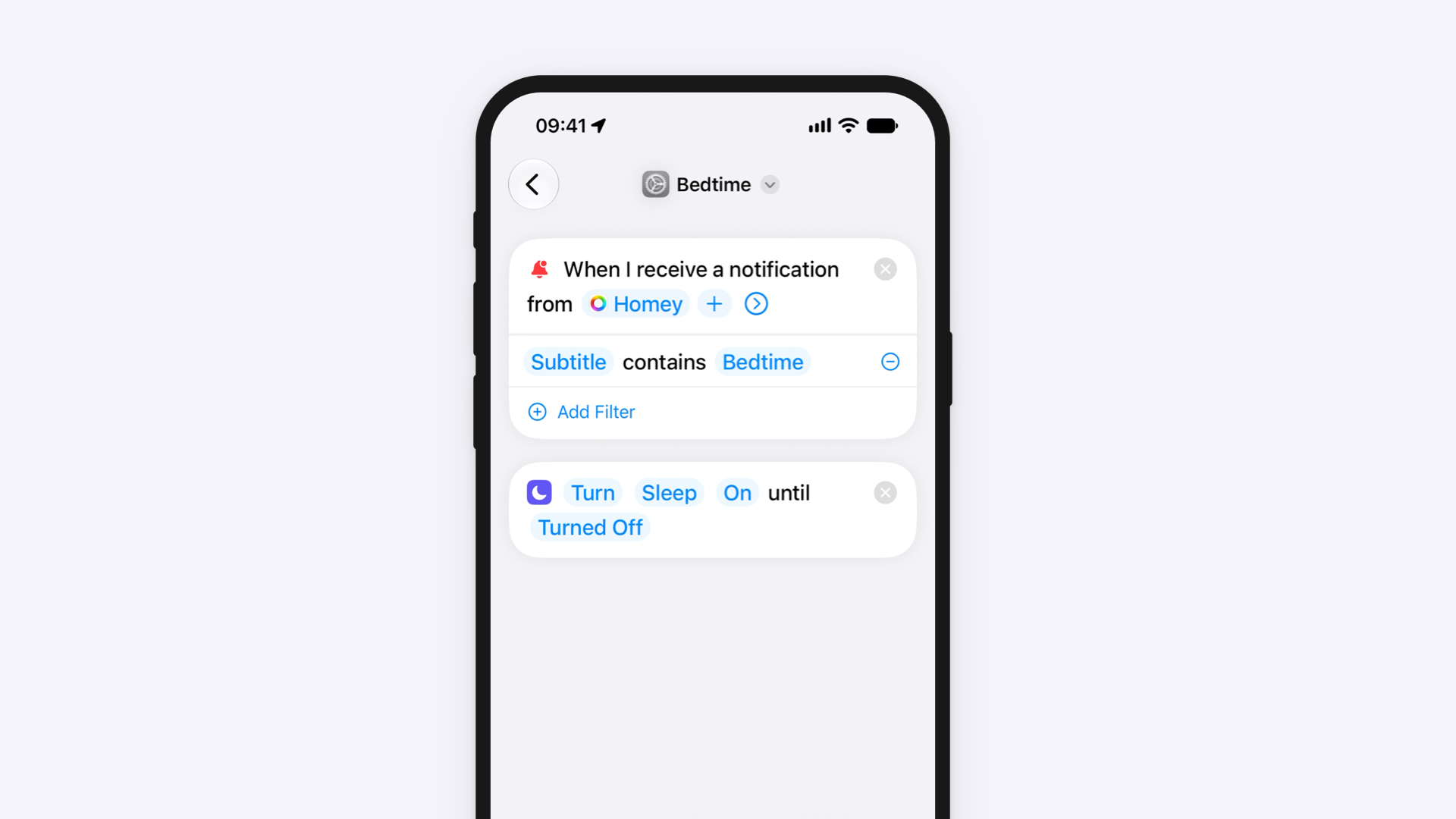
By default, Automation is on and Notify is off, so the automation runs right away without an extra notification. To approve each run yourself, turn on Notify, then turn on Confirm Before Run when it appears.
Step 3: Test it
Start the “Bedtime” Flow. Your first-floor lights turn off, the notification arrives, and your iPhone switches to Sleep Focus, even when it’s locked.
Try it with other routines
Repeat the bedtime steps with another Flow, word, and action:
- Your morning Flow sends “Morning”, and your iPhone turns Sleep Focus off.
- Your evening Flow sends “Evening”, and your iPhone switches to Dark Mode.
Start Flows from your iPhone
In Shortcuts, add the Start Homey Flow action to a shortcut or an automation, and choose the Flow you want to start.
- Your morning alarm goes off, and your curtains open.
- Your iPhone joins your home Wi-Fi, and the hallway lights turn on.
- Your iPhone taps an NFC tag by the front door, and the lock opens.
- You say “Hey Siri, movie time” and your living room gets ready for a movie.
Let Homey decide
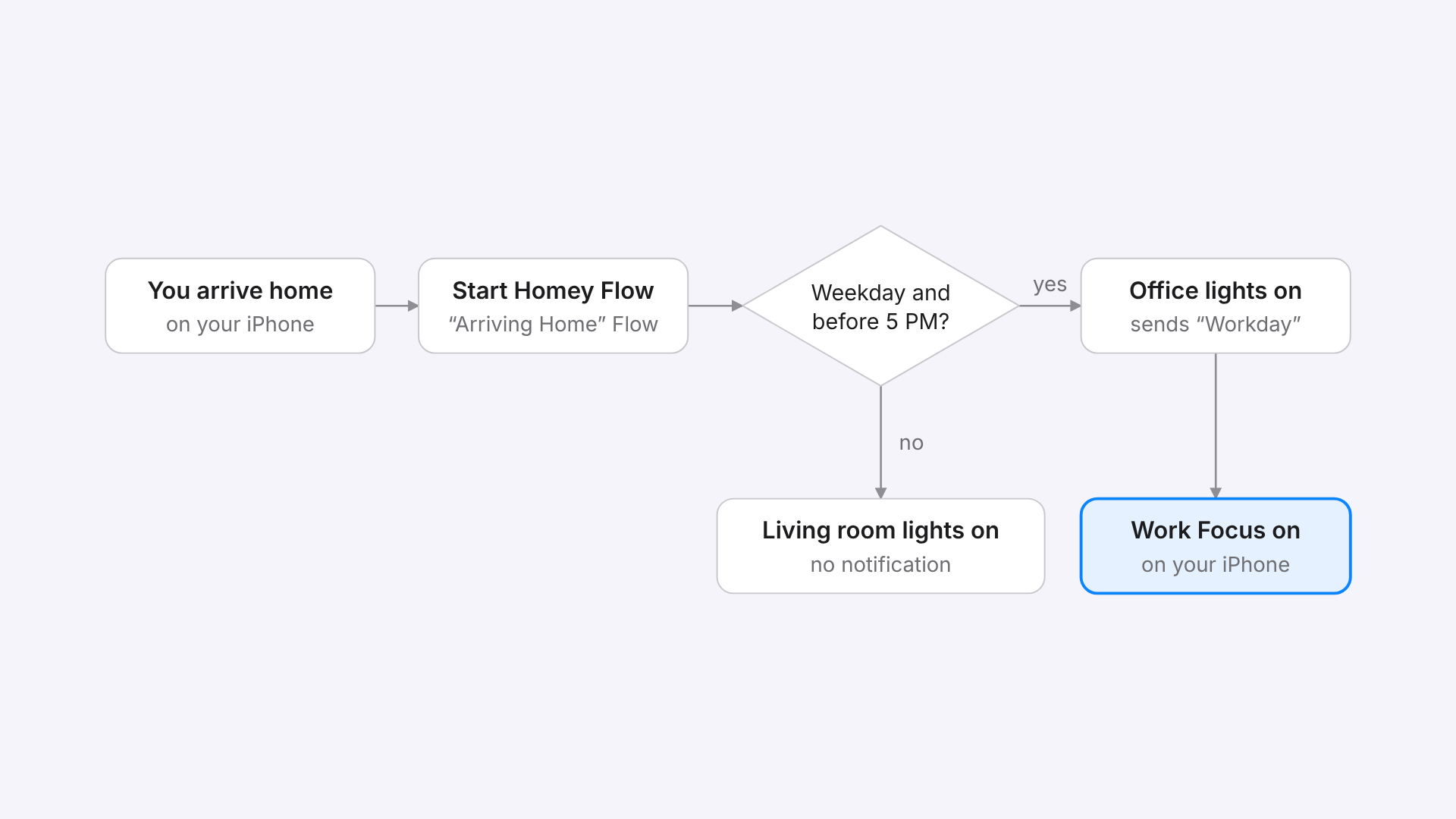
Combine both directions: your iPhone gives Homey a signal, Homey decides what to do based on your devices and sensors, and sends the result back.
For example, when you arrive home, a Shortcuts automation starts your “Arriving Home” Flow. On a weekday before 5 PM, the Flow turns on the office lights and sends the notification “Workday”. Your iPhone then switches to Work Focus. At other times, the Flow only turns on the living room lights.
Avoid endless loops
Never let an automation that reacts to a Homey notification run Start Homey Flow for the Flow that sent that notification. The two would keep starting each other.
If it happens anyway, turn off Automation for that automation in Shortcuts to break the loop.


