
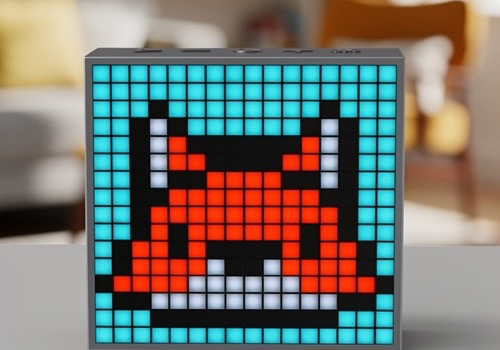
Divoom TimeBox Evo

The pixel heart of your smart home.

자세히 읽기 ›

지원되는 디바이스

Flow 카드

위의 디바이스를 클릭하면 관련 Flow 카드만 표시됩니다.

언제...

TimeBox Evo
켜지면
TimeBox Evo
꺼지면
TimeBox Evo
밝기가 변경되면
TimeBox Evo
TimeBox connected
i
Triggers when the TimeBox answers again after it was unavailable.
TimeBox Evo
TimeBox disconnected
i
Triggers when the TimeBox has been unreachable for 30 seconds.
TimeBox Evo
Mode changed
i
Triggers when the TimeBox switches to another mode, from Homey, the Divoom app or the device itself.
TimeBox Evo
Countdown ended
i
Triggers when the TimeBox reports that a countdown has ended, also one that a mode change, a text or turning the TimeBox off had hidden, and one that was started on the TimeBox itself or in the Divoom app. It does not trigger when you use "Stop countdown".

그리고...

TimeBox Evo
켜지면
TimeBox Evo
TimeBox is connected
i
Checks whether the TimeBox is connected to Homey right now.
TimeBox Evo
Mode is Mode
i
Checks which mode the TimeBox shows: clock, lighting or custom.

그러면...

TimeBox Evo
켜기
TimeBox Evo
끄기
TimeBox Evo
켬/끔 상태 전환하기
TimeBox Evo
다음 밝기로 조절 %
TimeBox Evo
상대 밝기 설정 %
i
제품의 현재 디밍 수준에 따라 어둡게 또는 밝게 설정돼요.
TimeBox Evo
색조 설정 °
i
색조 스케일에서 색상을 선택하세요. 빨간색은 (0°/360°), 노란색은 (60°), 파란색은 (180°)이에요.
TimeBox Evo
색상 설정 ...
TimeBox Evo
무작위 색상 설정
TimeBox Evo
채도 설정 %
TimeBox Evo
Switch to mode Mode
i
Switches the TimeBox display to the chosen mode. Lighting uses the stored colour.
TimeBox Evo
Show clock Style in Colour
i
Switches the TimeBox to the clock with this style and colour. The colour is kept as the clock colour (the colour picker of the device shows it); the style stays until the clock is selected again or the clock settings are changed, and turning the TimeBox off and on shows the same clock. The weather, temperature and calendar pages come from the device settings; the settings themselves are not changed.
TimeBox Evo
Set lighting to Colour
i
Switches the TimeBox to the lighting mode with this colour and turns the panel on. Brightness stays as it is (dim).
TimeBox Evo
Show custom page Page
i
Switches the TimeBox to the custom mode with this page and turns the panel on. Custom pages are the ones set up in the Divoom app.
TimeBox Evo
Show text Text in Text colour on Background colour, Speed, for Duration (s) s
i
Scrolls the text across the TimeBox display in its own large font and repeats it until the duration is over. Duration 0 keeps it until the Stop text action, a mode change or turning the TimeBox off. A new text replaces the running one; a turned-off TimeBox is turned on first. Texts longer than 64 characters (after removing emoji) make the action fail; emoji are removed because the TimeBox cannot show them.
TimeBox Evo
Stop text
i
Ends the scrolling text; the TimeBox shows its previous mode again.
TimeBox Evo
Show image ..., Fit, for Duration (s) s
i
Shows the image of an image tag (for example a camera snapshot or an album cover) on the TimeBox display. The picture is scaled to 16x16 pixels: Fill the display crops the sides of a non-square image, Whole image keeps all of it with black bars. Transparent areas are shown black. PNG, JPEG and GIF (first frame) are supported, up to 5 MB and 8.3 megapixels (for example 3840 x 2160) with at most 16384 pixels per side. Duration 0 keeps the image until a mode change, a text, a countdown or turning the TimeBox off; with a duration the TimeBox returns to its previous mode afterwards. A turned-off TimeBox is turned on first. Large images can take a few seconds to prepare.
TimeBox Evo
Show image from URL, Fit, for Duration (s) s
i
Downloads the picture at an http or https address when the action runs (Homey must be able to reach it; addresses in your own network work too) and shows it on the TimeBox display. The picture is scaled to 16x16 pixels: Fill the display crops the sides of a non-square image, Whole image keeps all of it with black bars. Transparent areas are shown black. PNG, JPEG and GIF (first frame) are supported, up to 5 MB and 8.3 megapixels (for example 3840 x 2160) with at most 16384 pixels per side. Duration 0 keeps the image until a mode change, a text, a countdown or turning the TimeBox off; with a duration the TimeBox returns to its previous mode afterwards. A turned-off TimeBox is turned on first. Large images can take a few seconds to prepare.
TimeBox Evo
Start a countdown of Minutes min Seconds s
i
Shows a countdown (hourglass, minutes and seconds) on the TimeBox display. At zero it shows 00:00 for a few seconds and the TimeBox returns to its previous mode. It replaces a running text; starting again restarts it; a turned-off TimeBox is turned on first. A mode change, a text or turning the TimeBox off only hides the countdown: it keeps running and shows 00:00 when it ends. Up to 99 minutes 59 seconds.
TimeBox Evo
Stop countdown
i
Ends the countdown while it is on screen; the TimeBox shows its previous mode again. A countdown that a mode change, a text or turning the TimeBox off has hidden cannot be stopped and still shows its end. Does nothing while the TimeBox is turned off or a text is shown.
TimeBox Evo
Set temperature to Temperature (°C) °C
i
Sets the temperature the TimeBox shows on the clock's temperature page. It is shown when "Show temperature" is on in the device settings. The temperature is rounded to whole degrees. It is sent once the TimeBox is on and connected, together with the last weather (clear if it was never set). Turn off "Show weather" if you do not set the weather. Automatic weather from Open-Meteo overwrites temperature and weather at each update.
TimeBox Evo
Set weather to Weather
i
Sets the weather condition the TimeBox shows on the clock's weather page. It is shown when "Show weather" is on in the device settings. It is sent once the TimeBox is on and connected, together with the last temperature (0 °C if it was never set). Turn off "Show temperature" if you do not set the temperature. Automatic weather from Open-Meteo overwrites temperature and weather at each update.

지원

이 앱에 문제가 있습니까? 개발자에게 문의하려면 여기를 클릭하세요..

새로운 기능

버전 1.1.0 — Bugfix release. The app is now called "Divoom TimeBox Evo" and its icon is shown when you add a device. Changes the TimeBox does not confirm (mode, brightness, power off, custom page) now fail with a clear message instead of reporting success. A brightness change while the display is off is kept and applied at the next switch on. When a countdown end lights a display that was off, the tile switches on. Saving the clock settings while switching to the clock now takes effect, and the Bluetooth connection recovers more cleanly. Existing devices and Flows keep working; no re-pairing is needed.

업데이트 로그 보기

Divoom TimeBox Evo

선택하신 Homey에 Divoom TimeBox Evo이(가) 호환되지 않습니다.

Divoom TimeBox Evo이(가) 곧 Homey에 설치됩니다.
앱 설치