




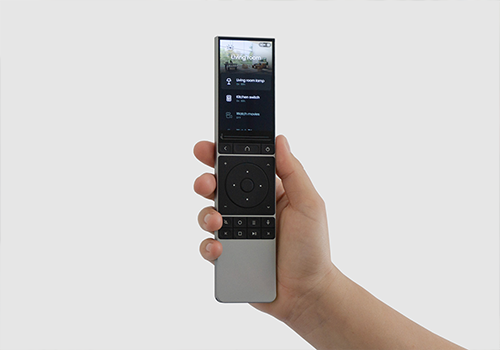
UC Dock
The dim level changed
Warning! This app might not work properly.
This app version is currently being tested, and has not yet been reviewed. It might not work as expected.
Be extra careful when installing this app.
Click on a device above to show related Flow cards only.
Having an issue with this app? Contact the developer via email.
Version 2.0.0 — Major update: UC Dock driver (IR codes, LED, learning mode), new flow cards (run macro, system command, entity state changed, switch profile, 9 condition cards), real-time WebSocket entity state, activity & profile caching. Fully redesigned settings page: Overview, Voice Settings, Help (6 guide sub-pages), and Logging tabs. STT model selection. Fixed voice transcription audio format mismatch.
 This app can manage your entire Homey.
Unfolded Circle is not compatible with the selected Homey.
 Unfolded Circle will install on Homey shortly.
We’ll let Unfolded Circle ApS know you love the app.
We’ll notify Unfolded Circle ApS you’ve sent a suggestion.
 Belgium
 Bulgaria
 Croatia
 Cyprus
 Czech Republic
 Estonia
 Finland
 Greece
 Hungary
 Iceland
 Ireland
 Latvia
 Lithuania
 Malta
Malta
 Moldova
 The Netherlands
 Portugal
 Romania
 Slovakia
 Slovenia
 Türkiye
 Ukraine
 United Kingdom


