





Control Zigbee devices via Apple Home with Homey
Zigbee devices don’t connect directly to Apple Home. To control Zigbee lights, plugs, or sensors in Apple Home, you need a smart home hub that supports Zigbee and can make those devices available to Apple’s platform.
Homey acts as that bridge, exposing Zigbee devices to Apple Home. Homey stays in control of the devices. Apple Home becomes an additional way to control them.
Apple Home is the app users interact with, while Apple HomeKit is the underlying smart home framework that devices and hubs integrate with. So, Apple Home is the interface and HomeKit is the technology behind it.
What you need
To control Zigbee devices via Apple Home, you need:
- A Homey Pro, Homey Pro mini or Homey Self-Hosted Server. Note that Homey Self-Hosted Server requires Homey Bridge to add Zigbee support
- One or more Zigbee devices paired with Homey
- An Apple ID and the Apple Home app
Zigbee devices must always be paired with Homey first, before they are added to Apple Home.
What “exposing devices” means
When Homey exposes a Zigbee device to Apple Home, it means Homey shares that device with Apple Home.
The device:
- stays paired with Homey
- is still controlled by Homey
- becomes visible in Apple Home
Apple Home does not communicate with Zigbee devices directly. All commands go through Homey. A simple way to think about it is that Homey translates between Zigbee and Apple Home.
How to expose Zigbee devices to Apple Home with Homey
Zigbee devices don’t pair directly with Apple Home. Instead, Homey exposes supported Zigbee devices to Apple Home using the Apple HomeKit experiment.
The process works like this:
- Set up the Zigbee device in Homey
Add and pair the Zigbee device in Homey using the standard Zigbee pairing process. Once paired, Homey communicates with the device locally over the Zigbee network and creates a Homey device that represents it. - Enable the Apple HomeKit experiment in Homey
In the Homey app or Web App, enable the Apple HomeKit experiment. Homey will generate and display a HomeKit pairing code. - Add Homey to Apple Home
Open the Apple Home app, choose Add Accessory, and scan the HomeKit code shown in Homey. Homey is added as a HomeKit bridge. - Devices sync automatically
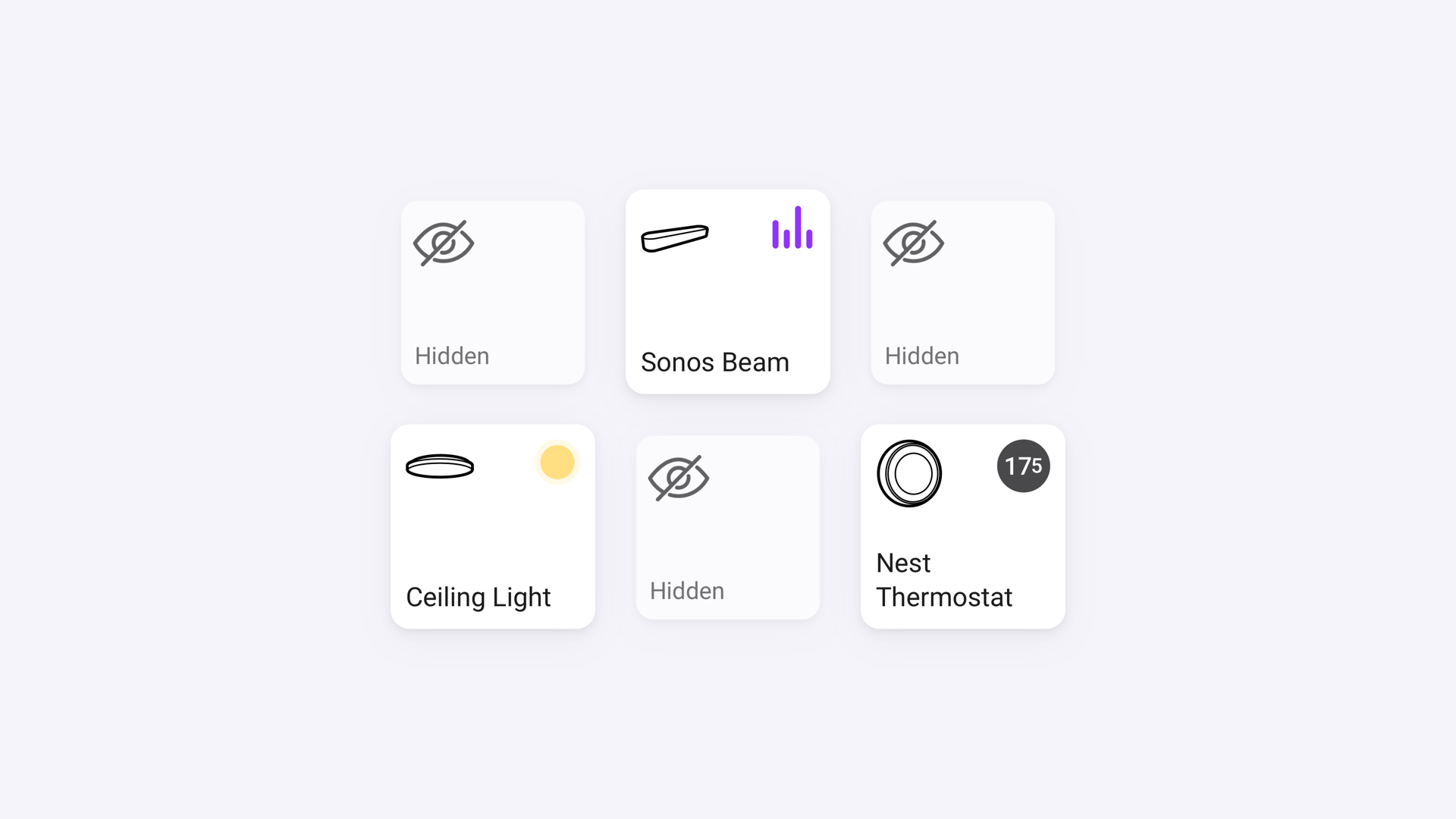
After pairing, Apple Home imports compatible Homey devices automatically. Supported Zigbee devices appear as HomeKit accessories, such as lights, switches, sensors, or thermostats—depending on device capabilities. - Exclude devices if needed
In Homey, you can choose which devices should not be exposed to Apple Home. Any excluded devices will not appear in the Apple Home app.
After this, you can control Zigbee devices from the Apple Home app or using Siri. The devices remain paired only with Homey, and Zigbee radio communication remains local between Homey and the device. No additional pairing or configuration is required in Apple Home.
How the connection works
Behind the scenes, the setup works in three steps:
- Zigbee devices connect to Homey
Homey acts as the Zigbee hub and controls the devices locally. - Apple Home connects to Homey
Apple Home communicates with Homey through the HomeKit bridge integration, not with Zigbee devices directly. - Homey forwards commands
When you control a device in Apple Home, Homey translates the command and sends it to the Zigbee device.
What you can do in Apple Home
Once exposed, Zigbee devices usually appear in Apple Home as standard accessories, such as:
- Lights (on/off, dimming, sometimes color)
- Switches and plugs
- Sensors (for status and simple automations)
You can:
- Control devices in the Apple Home app
- Use Siri voice commands
- Assign devices to rooms
- Include them in scenes and basic automations
What to keep in mind
A few important points:
- Zigbee devices must stay paired with Homey
- Not all Zigbee features are shown in Apple Home
- Advanced automation and logic stay in Homey
- Removing a device from Homey also removes it from Apple Home
Use Apple Home for control, scenes, and voice and Homey for automation and logic.
In short
Zigbee devices can’t connect directly to Apple Home.
Homey exposes them by making them visible and controllable in Apple Home, while keeping all Zigbee communication and automation inside Homey.
Apple Home becomes an additional way to interact with your devices and Homey stays in control.
Discover more about Homey by connecting additional devices through the Homey App Store. Control them with the Homey App and create your own automations with Flows and Advanced Flows. Monitor your smart home using Dashboards, and gain deeper understanding with Homey Energy and Insights.
Smart home technologies and platforms supported by Homey
Smart homes often use multiple wireless technologies and platforms. As a powerful smart home hub, Homey supports a wide range of communication standards, including Zigbee, Z-Wave, Matter, Thread, KNX, 433 MHz, Wi-Fi, Bluetooth and Infrared.
Homey also integrates with popular smart home platforms such as Amazon Alexa, Google Home and Apple Home. By combining multiple technologies and platforms in one system, Homey allows devices from different ecosystems to work together in one flexible smart home setup.


