





Actuator / Dimmer
켜지면
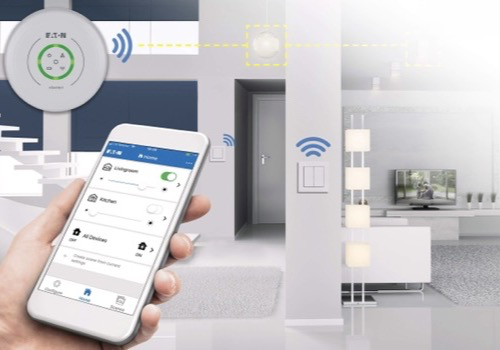
위의 디바이스를 클릭하면 관련 Flow 카드만 표시됩니다.
이 앱에 문제가 있습니까? 개발자에게 문의하려면 여기를 클릭하세요..
버전 1.4.27 — changes Thermo
Mike Taselaar 님께 앱을 잘 사용하고 있다고 알려주세요.
제안을 보내주셨다고 Mike Taselaar 님에게 알리겠습니다.
 Belgium
 Bulgaria
 Croatia
 Cyprus
 Czech Republic
 Estonia
 Finland
 Greece
 Hungary
 Iceland
 Ireland
 Latvia
 Lithuania
 Malta
Malta
 Moldova
 The Netherlands
 Portugal
 Romania
 Slovakia
 Slovenia
 Türkiye
 Ukraine
 United Kingdom


